




Whether you are decorating a dream home, setting up a cozy bedroom, or building an entire neighborhood from scratch, knowing how to rotate items in Sims 4 is one of the most fundamental skills you need to master. Rotation gives you full creative control over furniture placement, decorative objects, and structural elements — transforming a cluttered, awkward room into a perfectly composed living space. This comprehensive guide covers every rotation method available across PC, Mac, PlayStation, and Xbox, along with advanced tips that even veteran players often overlook.
Why Rotating Items Matters in The Sims 4
Before diving into the mechanics, it is worth appreciating just how much rotation affects your gameplay experience. In The Sims 4, build and buy mode gives players an enormous catalog of furniture, appliances, wall décor, and outdoor items. Without the ability to rotate these objects, every piece would face the same default direction — making realistic room layouts virtually impossible.
Imagine placing a sofa that always faces the television no matter where you put it, or a dining table where all chairs point toward a single wall. Rotation solves these problems. It allows chairs to tuck neatly under tables, desks to align with windows, and sofas to form conversation circles. For players who take interior design seriously, rotation is not just a convenience — it is the difference between a house that feels lived-in and one that looks like a showroom error.
Beyond aesthetics, rotation also plays a practical role. Doors need to swing in the right direction. Staircases must align with floor plans. Kitchen counters have to face the right way for Sims to interact with them efficiently. Mastering rotation early saves enormous amounts of time during long build sessions.
How to Rotate Items in Sims 4 on PC and Mac
For players on PC and Mac, The Sims 4 offers the most versatile rotation controls. Here is a full breakdown of every method available.
The Default Keyboard Shortcut: The Comma and PfAlt key free rotation Sims 4
eriod Keys
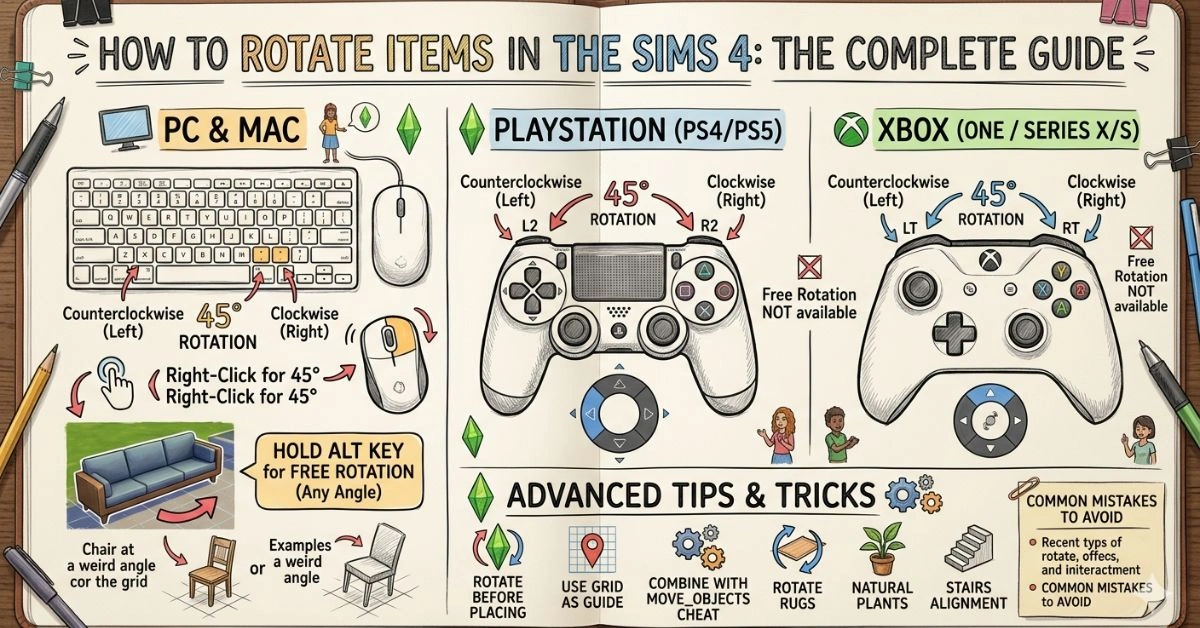
The simplest and most widely used method for rotating objects on PC and Mac involves two keyboard keys: the comma key (,) and the period key (.).
- Press the comma key to rotate an object counterclockwise (to the left).
- Press the period key to rotate an object clockwise (to the right).
Each press rotates the selected object by 45 degrees. So pressing the comma key twice rotates the item 90 degrees to the left, and pressing it four times brings it back to its original position. This method works on virtually any object in buy or build mode, making it the go-to shortcut for most PC players.



To use it, simply click on the object you want to place or move, hold it with your cursor, and press either key before placing it down. You can also pick up an already-placed item and rotate it the same way.
Right-Clicking to Rotate
Another quick method on the PC is right-clicking the object while holding it. Each right-click rotates the item 45 degrees clockwise. This is especially useful for players who prefer mouse-only controls or who want to keep their hands off the keyboard during intensive build sessions.
Using the On-Screen Rotation Arrows
When you click on a placed object to select it, small curved arrows appear around the item on screen. Clicking these arrows rotates the object in the corresponding direction. While this method is slower than keyboard shortcuts, it is intuitive for newer players and works well on laptops with trackpads.
Free Rotation with the Alt Key (45-Degree Lock Override)
By default, The Sims 4 locks rotation to 45-degree increments. However, you can unlock this constraint by holding the Alt key while rotating. With Alt held down, you can rotate objects to any angle — giving you the freedom to place items at 10 degrees, 22 degrees, or any other custom angle you choose.
This feature is a game-changer for advanced builders. It allows for diagonal furniture arrangements, angled garden paths, asymmetric room designs, and creative décor placements that would be impossible with the standard 45-degree lock. Keep in mind that free-rotation objects can sometimes clip into walls or other furniture, so always check the final placement carefully.
How to Rotate Items in Sims 4 on PlayStation (PS4 and PS5)
Console players have a slightly different experience in The Sims 4, but rotation is still straightforward once you learn the controller layout.
Rotating with the Controller
On PlayStation 4 and PlayStation 5, rotating items works through specific button presses in buy/build mode:
- Press the L2 trigger to rotate the object counterclockwise (to the left).
- Press the R2 trigger to rotate the object clockwise (to the right).
Each press rotates the object by 45 degrees, mirroring the behavior of the PC comma and period keys. Free rotation — the equivalent of the PC Alt key method — is not available on console editions, so PlayStation players are limited to 45-degree increments.
Using the Object Menu on Console
When you select a placed object on PlayStation, an action wheel appears. From this wheel, you can choose to rotate the object using the on-screen prompts. While less efficient than button shortcuts, this method is useful for precise adjustments after an item has already been placed.
Learn more about gaming basics in our detailed guide on what massively multiplayer online games are and how they work.
How to Rotate Items in Sims 4 on Xbox (Xbox One and Xbox Series X/S)
Xbox players follow a very similar process to PlayStation users, with minor differences in button mapping.
Rotating with the Xbox Controller
On Xbox One and Xbox Series X/S:
- Use the LT (Left Trigger) to rotate the object counterclockwise.
- Use the RT (Right Trigger) to rotate the object clockwise.
Again, each trigger press rotates the selected item 45 degrees. As with PlayStation, free-form rotation is not available on Xbox, and players are locked into the standard 45-degree rotation system.
Accessing Rotation Through the Build Menu
Like PlayStation, Xbox also provides an on-screen rotation option through the object action menu. Select any placed item, and the rotation controls will appear as part of the interaction wheel — particularly helpful when making small adjustments to already-decorated rooms.
Advanced Rotation Tips and Tricks
Once you are comfortable with the basics of how to rotate items in Sims 4, a whole world of advanced techniques opens up.
Tip 1: Rotate Before Placing, Not After
Many players place an object first and then try to rotate it into position. A faster workflow is to rotate the object while it is still attached to your cursor — before placing it. This lets you see the final angle in context and avoids unnecessary picking up and putting down.
Tip 2: Use the Grid as Your Guide
The Sims 4 build mode features an underlying grid. When rotating objects in 45-degree increments, use the grid lines to ensure items are aligned with walls, floors, and other furniture. Diagonal placements (at 45 degrees) align perfectly with grid diagonals, while 90-degree rotations align with the standard grid axes.
Tip 3: Combining Free Rotation with the MoveObjects Cheat
For ultimate placement freedom, combine free rotation (Alt key on PC) with the bb.moveobjects cheat. Type bb.moveobjects in the cheat console (Ctrl + Shift + C on PC) to disable object collision detection. With this cheat active, you can rotate and position objects without them snapping away from walls or triggering clipping errors.
This combination is extremely popular among Sims 4 content creators who build elaborate lots for the gallery. It enables ultra-precise item staging that is simply not possible through standard controls alone.
Tip 4: Rotating Rugs and Floor Décor
Rugs are a special case in Sims 4 rotation. Because rugs are large, flat objects, their rotation dramatically affects the visual flow of a room. A horizontal rug under a sofa facing one direction may need to be rotated 90 degrees when the sofa faces a different wall. Always rotate rugs after finalizing your furniture layout to ensure the rug’s pattern orientation complements the room’s overall flow.
Tip 5: Rotating Plants and Outdoor Items
Plants, trees, and garden décor can also be rotated, and doing so makes outdoor spaces look far more natural and organic. Rather than having all plants face the same direction, rotate each one slightly differently. Combined with free rotation on PC, this creates a lush, asymmetric garden feel that mimics real-world landscaping far more convincingly than uniformly placed greenery.
Tip 6: Rotating Stairs and Multi-Level Structures
Stairs in The Sims 4 often require careful rotation to fit properly within floor plans. When placing a staircase, rotate it so that the bottom step leads naturally from the lower floor’s traffic flow and the top step exits into the most convenient part of the upper floor. Poor stair rotation is one of the most common causes of Sims getting stuck or taking inefficient paths through multi-story homes.
Common Rotation Mistakes and How to Avoid Them
Mistake 1: Forgetting to Check All Angles
After rotating and placing an object, always view it from multiple camera angles. What looks correct from above may appear awkward from a ground-level perspective. Use The Sims 4’s free camera mode (Tab key on PC) to walk through your build and verify that rotated items look natural from every direction.
Mistake 2: Rotating Walls Instead of Objects
In build mode, accidentally selecting a wall segment instead of a piece of furniture is more common than you might think. Always confirm what is selected before pressing the rotation keys. The selected object will be highlighted with a blue or green outline — make sure it is the item you intend to rotate.
Mistake 3: Over-Rotating with Free Rotation
Free rotation is powerful, but it is easy to go too far and end up with furniture at unintentionally odd angles. If you are unsure whether a free-rotation angle looks right, use the Undo shortcut (Ctrl + Z on PC) to reset the last action and try again.
Mistake 4: Ignoring Door Swing Direction
Doors in The Sims 4 swing in a specific direction based on their rotation. If you place a door that swings into a corridor or blocks a countertop, your Sims will struggle to navigate the space. Always rotate doors so their swing arc opens into the larger, more open area of a room, keeping pathways clear.
Quick Reference: Rotation Controls by Platform
| Platform | Rotate Left | Rotate Right | Free Rotation |
| PC / Mac (Keyboard) | Comma Key (,) | Period Key (.) | Hold Alt |
| PC / Mac (Mouse) | Right-Click | Right-Click | N/A |
| PlayStation 4 / 5 | L2 Trigger | R2 Trigger | Not Available |
| Xbox One / Series X|S | LT Trigger | RT Trigger | Not Available |
Frequently Asked Questions
Q1. Can I rotate items in Live Mode?
No. Rotation is only available in Build and Buy Mode. Switch modes by pressing F2 on PC or accessing the build menu on console.
Q2. Why won’t my object rotate?
Some wall-mounted or special expansion pack objects are non-rotatable by design. If rotation keys have no effect, the item is likely fixed.
Q3. Does rotating objects affect Sim interactions?
Yes. Objects like sofas, beds, and desks have directional interaction points. Rotating them affects which side Sims approach from and how they use the item.
Q4. Can I rotate objects diagonally on the console?
No. Console players are limited to 45-degree increments. True free-angle rotation is only available on PC and Mac.
Final Thoughts
Knowing how to rotate items in Sims 4 is the foundation of great building and interior design in the game. From the simple comma and period keys on PC to the trigger-based controls on console, every platform gives you the tools to orient your objects exactly as you envision them. Advanced techniques like free rotation with the Alt key and the MoveObjects cheat take your builds to the next level, enabling diagonal layouts, organic garden designs, and precisely staged rooms worthy of the Sims 4 Gallery.
Practice these rotation methods regularly, and they will quickly become second nature. The more fluent you become with object orientation, the faster your builds will come together — and the more your finished lots will reflect your unique creative vision. Whether you are a casual player furnishing a starter home or a dedicated builder crafting a masterpiece, rotation is the skill that ties every great Sims 4 build together.