

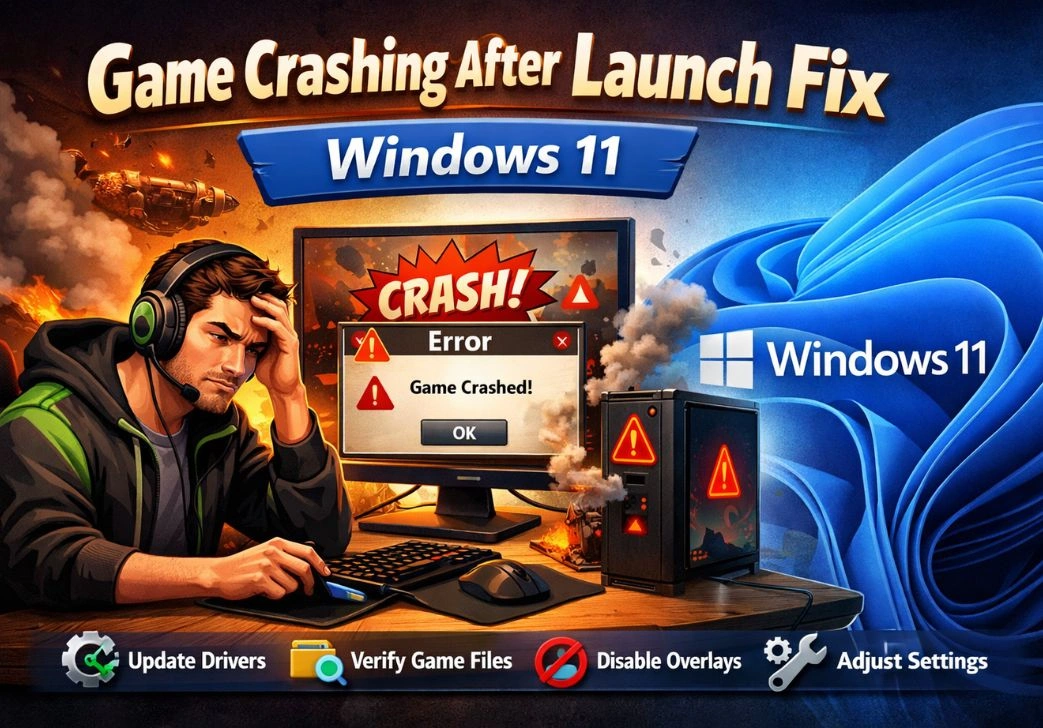

There are few things more frustrating than sitting down to play your favorite game, hitting launch, and watching it crash before you even get past the loading screen. If this sounds familiar, you’re not alone. Since Windows 11 rolled out, a large number of gamers have reported games crashing immediately after launch — and the causes range from outdated drivers to conflicting background apps.
The good news is that most of these crashes are fixable without reinstalling your entire operating system or buying new hardware. This guide walks you through every major fix for game crashing after launch on Windows 11, in a logical order — starting with the simplest steps and working toward more advanced solutions.
Whether you’re playing AAA titles, indie games, or older classics, these fixes apply broadly. Let’s get into it.
Why Do Games Crash After Launch on Windows 11?
Before jumping into fixes, it helps to understand what’s actually causing the problem. Windows 11 introduced significant architectural changes compared to Windows 10 — a new kernel scheduler, TPM 2.0 requirements, a redesigned DirectX pipeline, and deeper integration with Xbox Game Bar and Xbox services. While most of these are improvements, they also introduced new points of failure for gaming.
Here are the most common culprits behind game crashes on Windows 11:
- Outdated or corrupted GPU drivers
- Incompatible DirectX or Visual C++ redistributables
- Windows Security (antivirus) blocking game processes
- Overclocked hardware running unstable under load
- Corrupted game files
- VBS (Virtualization-Based Security) conflicting with certain anti-cheat systems
- Insufficient permissions or admin rights for the game executable
- Background apps consuming resources or conflicting with the game
Identifying the root cause is the first step — and the fixes below are ordered to help you narrow it down efficiently.
Fix 1: Update Your GPU Drivers
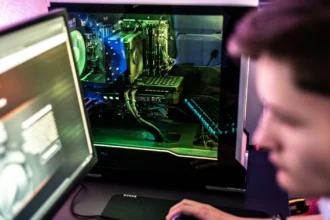
This is almost always the first thing you should try. An outdated graphics driver is the single most common reason for game crashing after launch on Windows 11, especially after a major OS update.
To update your GPU drivers:
- For NVIDIA: Download the latest driver from NVIDIA’s official website, or use GeForce Experience. Always choose a ‘Game Ready Driver’ over a Studio Driver for gaming.
- For AMD: Use the AMD Adrenalin software or download directly from AMD’s support page.
- For Intel Arc: Download from Intel’s Arc graphics driver page.
One thing many people overlook: if updating doesn’t fix it, try doing a clean installation. Both NVIDIA and AMD offer a ‘clean install’ option during the driver setup, which removes leftover files from previous driver versions that can cause instability.
Alternatively, use Display Driver Uninstaller (DDU) in Safe Mode to completely wipe old drivers before installing fresh ones. This is particularly helpful if you’ve switched GPU brands or experienced a driver update that broke things.
Fix 2: Run the Game as Administrator
Some games — especially older titles or those that write data to protected system folders — require administrator privileges to run properly. Without them, they may crash silently on launch.
To run a game as administrator:
- Right-click the game’s .exe file or its shortcut and select ‘Run as administrator.’
- To make it permanent, right-click the .exe, go to Properties > Compatibility, and check ‘Run this program as an administrator.’
If the game is launched through a client like Steam or Epic Games Launcher, you may also need to run the launcher itself as administrator — not just the game executable.
Fix 3: Check and Repair Game Files
Corrupted or missing game files are another very common cause of crashes at launch. This can happen after a failed update, a sudden power cut during installation, or even a bad sector on your drive.
Most game launchers have a built-in repair tool:
- Steam: Right-click the game in your library > Properties > Local Files > ‘Verify integrity of game files.’
- Epic Games Launcher: Click the three dots next to the game > Manage > Verify.
- EA App / Origin: Right-click the game > ‘Repair.’
- GOG Galaxy: Click the settings icon next to the game > Manage Installation > Repair.
Let the verification complete fully — it may take several minutes for larger games. If files are found missing or corrupted, the launcher will re-download them automatically.
Fix 4: Install or Repair Visual C++ Redistributables and DirectX
Many games depend on specific versions of the Visual C++ Redistributable packages and DirectX components. If these are missing, corrupted, or the wrong version, the game will crash at launch — often without any helpful error message.
Here’s what to do:
- Go to the game’s installation folder. Look for a folder called ‘Redist,’ ‘_CommonRedist,’ or ‘DirectX.’ Most games ship these files and include an installer — run it.
- Alternatively, download the latest Visual C++ Redistributable packages directly from Microsoft’s official website. Install both the x64 and x86 versions.
- For DirectX, run the DirectX End-User Runtime Web Installer from Microsoft’s site.
After installing, restart your PC before launching the game again. This is a small step that gets overlooked surprisingly often.
Fix 5: Add the Game to Windows Security Exclusions
Windows Security (Microsoft Defender) has become more aggressive in Windows 11, and it occasionally flags game executables as suspicious — particularly games that use anti-cheat or memory injection. When it blocks a game process, the game crashes at launch with no real error to explain why.
To add an exclusion:
- Open Windows Security from the Start menu.
- Go to Virus & Threat Protection > Manage Settings.
- Scroll down to Exclusions and click ‘Add or Remove Exclusions.’
- Click ‘Add an Exclusion’ and select the folder containing your game files.
If you use a third-party antivirus like Bitdefender, Kaspersky, or Norton, the process is similar — add the game’s installation folder as a trusted location or whitelist. Temporarily disabling the antivirus to test whether it’s the cause is also a valid diagnostic step, though not a permanent solution.
Fix 6: Disable Virtualization-Based Security (VBS)
This one is specific to Windows 11 and has affected a significant number of gamers since the OS launched. Windows 11 enables Virtualization-Based Security by default on compatible hardware. While VBS improves system security, it’s known to conflict with certain anti-cheat systems — including Easy Anti-Cheat and BattlEye — which can cause games to crash immediately after launch.
To check if VBS is enabled, press Windows + R, type ‘msinfo32,’ and look for ‘Virtualization-based security’ in the System Summary. If it says ‘Running,’ VBS is active.
To disable it:
- Open Windows Security > Device Security > Core Isolation Details.
- Toggle off ‘Memory Integrity.’
- Restart your PC.
Note: Disabling Memory Integrity reduces a layer of security protection. Only do this if you’re confident about the software you’re running, and re-enable it when not gaming if you prefer to keep that protection in place.
Fix 7: Set the Correct Compatibility Mode
Older games not officially updated for Windows 11 can crash because they were built for Windows 7, 8, or even XP. Windows 11 includes a compatibility mode specifically to handle this.
To use it:
- Right-click the game’s .exe file and select Properties.
- Click the Compatibility tab.
- Check ‘Run this program in compatibility mode for’ and select an earlier Windows version from the dropdown.
- Also check ‘Disable fullscreen optimizations’ — this alone fixes crashes for many older games.
- Apply and save.
Try Windows 8, then Windows 7, and see which one works. Some games that predate DirectX 10 may need Windows XP compatibility.
Fix 8: Disable Xbox Game Bar and Game Mode
Xbox Game Bar is built into Windows 11 and runs in the background during gaming sessions. While it’s useful for screen recording and performance overlays, it occasionally conflicts with games — particularly ones that have their own overlay systems (like Steam or Discord).
To disable Game Bar:
- Go to Settings > Gaming > Xbox Game Bar.
- Toggle it off.
While you’re there, also check Settings > Gaming > Game Mode and try toggling it off. Game Mode is designed to prioritize CPU and GPU resources for games, but in practice it can cause stuttering or instability with certain titles.
If you use an NVIDIA GPU, also disable the GeForce Experience in-game overlay (Settings > General > In-Game Overlay). The same goes for AMD’s ReLive overlay in Radeon Software.
Fix 9: Update Windows 11
It may seem obvious, but running an outdated version of Windows 11 can itself be the problem. Microsoft regularly pushes patches that fix gaming-related bugs, improve DirectX compatibility, and address crashes introduced by earlier updates.
To update:
- Go to Settings > Windows Update.
- Click ‘Check for updates’ and install anything available.
- Restart your PC after updates complete.
Also check for optional updates — these sometimes include driver updates and patches that don’t install automatically. Keeping your system current is basic maintenance that pays off.
Fix 10: Check for Overheating and Hardware Instability
If your CPU or GPU is overheating, your system may crash games — especially in the first few minutes after launch when load spikes highest. Overclocking your hardware can also introduce instability that only shows up under gaming load.
Use a free tool like HWiNFO64 or MSI Afterburner to monitor your temperatures while launching a game:
- CPU temperatures should ideally stay below 85°C under load.
- GPU temperatures should stay below 90°C for most cards (check your specific GPU’s specs).
If temperatures are high, check that your PC’s fans are working, that thermal paste hasn’t dried out (especially on older systems), and that your case has adequate airflow.
If you’ve overclocked your CPU or GPU, try reverting to stock clock speeds and testing whether crashes persist. Overclocks that seem stable in benchmarks sometimes fall apart under the specific memory and load patterns that games create.
Fix 11: Perform a Clean Boot
A clean boot starts Windows with only the essential Microsoft services and drivers, which helps you identify whether a third-party background application is causing the crash. Suspects include RGB control software, hardware monitoring tools, Discord, and even some VPN clients.
To perform a clean boot:
- Press Windows + R, type ‘msconfig,’ and hit Enter.
- Go to the Services tab. Check ‘Hide all Microsoft services,’ then click ‘Disable all.’
- Go to the Startup tab and click ‘Open Task Manager.’
- Disable all startup items in Task Manager.
- Close Task Manager and click OK in System Configuration.
- Restart your PC and try launching the game.
If the game works in a clean boot, re-enable services and startup items in small groups until you identify the conflict. Once found, either keep that app disabled while gaming or look for a setting within it that causes the issue.
Fix 12: Reinstall the Game
If nothing above has worked, a full reinstall is often the last resort before deeper troubleshooting. Sometimes the installation itself is damaged in a way that file verification can’t fully repair.
Before reinstalling:
- Back up your save files. Check the game’s documentation or PCGamingWiki to find where saves are stored — usually in Documents, AppData, or a cloud sync folder.
- Uninstall the game fully through your launcher or via Settings > Apps.
- If installing to an HDD, consider moving it to an SSD if one is available — some games crash on slower drives due to load timeout issues.
After reinstalling, install any Redist packages included with the game before launching it, and run it as administrator the first time.
Quick Diagnostics: Reading Windows Event Viewer
One underused tool for diagnosing game crashes is Windows Event Viewer. Every time an application crashes, Windows logs an error that can give you specific information about what failed.
To use it:
- Press Windows + X and select Event Viewer.
- Go to Windows Logs > Application.
- Look for Error or Critical entries timestamped around when your game crashed.
- Click an entry to see details — look for the ‘Faulting module name,’ which often points directly to the broken component (a .dll file, a driver, or an antivirus module).
This information can tell you exactly which fix to prioritize, and is especially useful when reporting issues to a game’s support team.
Summary: Where to Start
If you’re dealing with game crashing after launch on Windows 11 and aren’t sure where to begin, here’s a quick priority order:
- Update your GPU drivers (clean install if needed).
- Verify game file integrity through your launcher.
- Add the game folder to your antivirus exclusions.
- Reinstall Visual C++ Redistributables and DirectX.
- Try a clean boot to rule out background app conflicts.
Work through that list before moving on to the more advanced fixes. Most people find a solution within the first three steps.
Frequently Asked Questions
Q1: Why does my game crash immediately on launch in Windows 11 but work fine on Windows 10?
Windows 11 introduced changes like Virtualization-Based Security, a redesigned DirectX pipeline, and stricter memory handling that can break compatibility with certain games — especially older titles and those using specific anti-cheat solutions. Disabling VBS/Memory Integrity and running the game in compatibility mode are the most common fixes for this specific scenario.
Q2: Can RAM cause games to crash at launch?
Yes. Faulty or misconfigured RAM is a less obvious but real cause of game crashes. If your RAM is running at XMP/EXPO speeds and is unstable, it may crash under the specific memory patterns games use. Try running at the default JEDEC speed in BIOS to test. You can also run the Windows Memory Diagnostic tool (type ‘mdsched’ in the Run dialog) to check for errors.
Q3: Why do some games crash on Windows 11 but others don’t?
Different games use different DirectX versions, graphics APIs, anti-cheat systems, and engine-level memory management. A game built on an older engine may clash with Windows 11’s security features, while a newer game patched for Windows 11 runs fine. That’s why the fix is often game-specific rather than a blanket system change.
Q4: Does disabling Game Mode actually help with crashes?
For some games, yes. Game Mode is designed to prioritize resources for your game, but it can also interfere with how certain games schedule tasks or interact with background services. It’s worth toggling off as part of troubleshooting, especially if you’re seeing both crashes and performance stutters.
Q5: Should I reinstall Windows 11 if my game keeps crashing?
A full Windows reinstall should be a last resort. Before going that far, work through all the fixes in this guide — particularly the clean boot, driver reinstall, and VBS disable steps. Most game launch crashes on Windows 11 are resolved without touching the operating system installation itself.
Q6: How do I know if my GPU driver is the problem?
Check the Windows Event Viewer after a crash. If the faulting module is nvlddmkm.sys (NVIDIA), amdkmdag.sys (AMD), or a similar driver file, the GPU driver is almost certainly the culprit. A clean driver reinstall using DDU in Safe Mode usually resolves it.
Q7: Can fullscreen mode cause games to crash on Windows 11?
Yes, Windows 11’s fullscreen optimizations can interfere with certain games. Try disabling this option in the game’s .exe Properties > Compatibility tab. Also, switching from exclusive fullscreen to borderless windowed mode in the game’s settings often resolves crash issues tied to display mode conflicts.
Final Thoughts
Dealing with a game crashing after launch on Windows 11 is genuinely annoying, but it’s rarely a sign of serious hardware failure or an unfixable software problem. In the vast majority of cases, the issue comes down to drivers, permissions, antivirus interference, or a compatibility mismatch — all of which are solvable with the right approach.
Work through the fixes methodically rather than randomly jumping between them, and use Event Viewer to guide your decisions when you’re not sure where to look. With a bit of patience, you’ll have your games running smoothly again.