



You’re in the middle of a match. Everything is going well. Then out of nowhere, your screen freezes, your character teleports backward, and you’re dead. Not because the enemy was better — but because of lag.
If that sounds familiar, you’re definitely not alone. Lag is one of the most common and most frustrating problems in online gaming. It doesn’t matter whether you play on PC, PlayStation, or Xbox — lag can hit anyone, at any time. The good news is that most lag issues are fixable. You just need to know where to look.
This guide walks you through how to fix lag in online multiplayer games in a straightforward, practical way. No confusing tech jargon, no generic advice — just real steps that actually make a difference.
What Is Lag and Why Does It Happen?
Before jumping into fixes, it helps to understand what lag actually is. A lot of people use the word loosely, but lag can come from two very different sources — and confusing them leads to wrong fixes.
Network lag is the most common type. It happens when there’s a delay between your actions and what the game server registers. This is measured in milliseconds and is called ping. A ping of 20–50ms feels buttery smooth. Anything above 100ms starts to feel slow. Above 200ms, the game becomes nearly unplayable in fast-paced titles.
Performance lag comes from your own hardware — your PC or console struggling to run the game at a stable frame rate. This shows up as stuttering, screen freezes, or choppy movement even when your internet connection is fine.
Both types feel awful, but they need different solutions. Knowing which one you’re dealing with saves you a lot of time. Open your game’s performance display (most games have one in the settings) and watch your ping and frame rate (FPS) at the same time. If your ping is high, it’s a network problem. If your FPS is low or unstable, it’s a hardware or settings problem.
Test Your Internet Connection
The very first thing to do is check your internet connection. Don’t assume it’s fine just because web pages load quickly. Gaming is much more sensitive to connection quality than browsing or streaming.


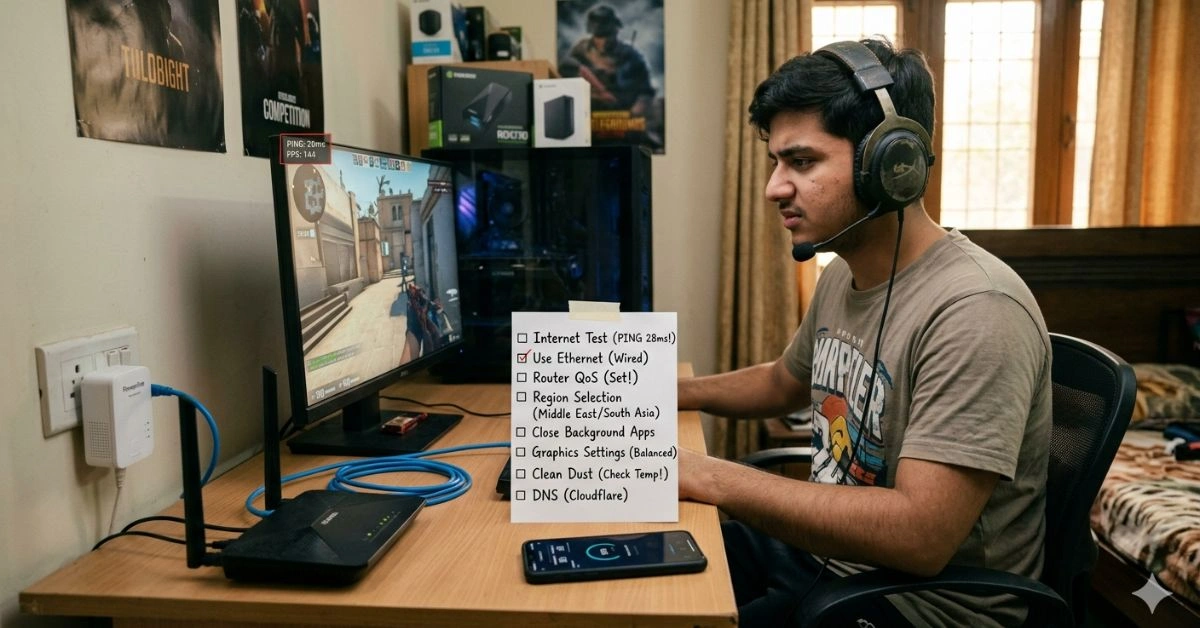
Go to a speed test website and run a test. Note your ping, download speed, upload speed, and jitter. For online gaming, you generally want:
- Ping under 60ms
- Download speed of at least 15–25 Mbps
- Upload speed of at least 3–5 Mbps
- Jitter under 10ms
Jitter is often overlooked, but it matters a lot. Jitter measures how much your ping jumps around. Even if your average ping is 40ms, if it’s swinging between 20ms and 180ms every few seconds, your game will feel broken. That inconsistency is what causes rubber-banding and teleporting characters.
If your results look poor, restart your modem and router. Unplug them, wait 30 seconds, and plug them back in. Sometimes that alone fixes a sluggish connection. If results are still bad, the issue might be with your ISP or your home network setup.
Use a Wired Connection Instead of Wi-Fi
This might be the most impactful single change you can make. Wi-Fi is convenient, but it’s not reliable enough for competitive online gaming. Wireless signals are affected by walls, distance from the router, nearby electronics, and interference from your neighbors’ networks.
A wired Ethernet connection cuts through all of that. It gives you a direct, stable link to your router with much lower latency and almost zero packet loss. Packet loss is particularly harmful in gaming — it means data sent from your PC to the server gets lost along the way, causing sudden lag spikes and disconnections.
If your gaming setup is far from your router and you can’t run a cable, consider a Powerline adapter. These devices use your home’s electrical wiring to carry the network signal. It’s not quite as good as a direct Ethernet cable, but it’s far more stable than Wi-Fi in most situations.
Set Up Quality of Service (QoS) on Your Router
If multiple people in your house are using the internet at the same time — streaming shows, video calling, downloading files — your gaming traffic has to compete with all of that. This causes ping spikes right when you need a stable connection most.
Most modern routers have a feature called Quality of Service, or QoS. It lets you tell the router which device or type of traffic should get priority. When QoS is set up correctly, your router pushes your gaming data through first before handling anything else.
To set it up, open your router’s settings by typing its IP address into your browser (usually 192.168.1.1 or 192.168.0.1). Log in and look for QoS or Traffic Management in the settings menu. Add your gaming PC or console to the priority list. If you’re not sure how to find it, search your specific router model along with “QoS setup” for step-by-step instructions.
Pick the Right Server Region in Your Game
Every online game connects you to a server somewhere in the world. The farther that server is from you physically, the higher your ping will be — because data takes time to travel. This is basic physics, and no amount of internet speed can overcome it.
Most games let you choose your server region manually in the settings. Always pick the region that is geographically closest to you. If you’re in Pakistan, a Southeast Asian or Middle Eastern server will almost always give you better ping than a European or North American one.
Also, check the game’s server status occasionally. Some regions have overloaded servers that give high ping even if they’re physically close to you. Trying a different nearby region can sometimes give a better result than the obvious choice.
Close Everything Running in the Background
Your computer might be quietly using your internet connection in the background without you realizing it. Windows Update, cloud syncing apps like OneDrive or Google Drive, torrent clients, and even antivirus software can eat into your bandwidth and CPU while you’re trying to game.
Before you start a gaming session, close anything that isn’t needed:
- Pause or quit cloud backup services
- Close your browser and any open tabs
- Stop any ongoing downloads
- Turn off automatic updates temporarily (just remember to turn them back on later)
- Shut down apps like Discord’s video features if you’re not using them
Also check the Task Manager (on Windows, press Ctrl + Shift + Esc) to see if anything is using a lot of network activity or CPU in the background. Sort by network usage and close anything that shouldn’t be running.
For more helpful Sims 4 tips and tricks, explore our related articles to enhance your building and gameplay experience.
Update Network Drivers and Game Files
Old or corrupted network drivers are a surprisingly common cause of lag, especially on PC. Drivers are the software that lets your operating system communicate with your network card. If they’re outdated, they can cause connection instability that shows up as random ping spikes during gameplay.
Go to your network adapter manufacturer’s website — common ones include Intel, Realtek, and Killer — and download the latest driver for your model. Alternatively, open Device Manager on Windows, find your network adapter, right-click it, and choose “Update driver.”
Also verify your game files regularly. Most game launchers like Steam, Battle.net, and Epic Games have a built-in option to check and repair corrupted game files. Corrupted data can cause the game to behave erratically, which can look and feel just like lag.
Tweak Your In-Game Graphics Settings
If your problem is performance lag rather than network lag, your graphics settings are the place to start. Running a game at settings that are too high for your hardware forces your GPU and CPU to work harder than they can handle, causing frame drops and stuttering.
You don’t need to make the game look bad — just find a balance between visuals and performance. The settings that have the biggest impact on frame rate include:
Shadow Quality — Shadows are extremely demanding. Lowering this setting alone can give you a significant FPS boost.
Anti-Aliasing — Smooths jagged edges but costs performance. Try turning it down one level or switching to a lighter mode.
Ambient Occlusion — Adds depth shading to scenes. Turning this off is rarely noticeable but frees up GPU power.
Render Distance or Draw Distance — Reduces how far the game renders objects. Very helpful in open-world or battle royale games.
V-Sync — If your FPS drops below your monitor’s refresh rate with V-Sync on, it can cut your frame rate in half suddenly. Try turning it off and using a frame rate cap instead.
Aim for a stable frame rate at or above your monitor’s refresh rate. A steady 60 FPS feels far smoother than a fluctuating 90–40 FPS.
Check Your Hardware Temperatures
Overheating is something many gamers never think about until it’s too late. When your CPU or GPU gets too hot, it automatically slows itself down to prevent damage — a process called thermal throttling. This causes sudden, severe performance drops that look exactly like lag.
Download a free monitoring tool like HWMonitor or MSI Afterburner and keep an eye on your temperatures while gaming. CPUs should generally stay below 85°C under heavy load. GPUs vary but typically should stay below 90°C.
If your temperatures are too high, start with the basics: clean the dust out of your PC. Dust buildup is the most common cause of overheating, and cleaning it out takes only a few minutes. If temperatures are still too high after cleaning, consider reapplying thermal paste to your CPU, or adding extra case fans to improve airflow.
Try a Gaming-Focused DNS Server
Your DNS server translates website names and game server addresses into IP addresses. By default, you use your ISP’s DNS server, which may not be the fastest option. Switching to a faster, more reliable DNS can reduce connection lookup times and occasionally improve overall network stability.
Two popular free options are Google DNS (8.8.8.8 and 8.8.4.4) and Cloudflare DNS (1.1.1.1 and 1.0.0.1). Changing your DNS takes about two minutes in your network settings on both PC and consoles. It won’t always make a dramatic difference, but it’s a quick and free thing to try.
Consider a Gaming VPN for Routing Issues
This tip doesn’t apply to everyone, but it’s worth knowing about. Sometimes the route your data takes from your home to the game server is inefficient — it bounces through too many stops (called hops) along the way, adding latency at each one.
A gaming-specific VPN or network optimization service like ExitLag or WTFast can reroute your connection along a faster, more direct path to the server. This works especially well for players in regions where ISP routing infrastructure isn’t great.
It won’t help everyone, and a regular privacy VPN can sometimes make lag worse by adding extra routing. Only try gaming-specific services designed for this purpose, and use their free trials to test before paying.
When to Contact Your ISP
If you’ve tried everything above and nothing has worked, the problem might be on your ISP’s end. ISPs sometimes throttle gaming traffic, have congested local infrastructure, or experience persistent issues in certain areas.
Use a traceroute tool (type tracert followed by a game server address in your Command Prompt on Windows) to see where delays are happening. If the lag is occurring several hops away from your home — meaning it’s not in your local network — that’s evidence the problem is with your ISP or the network infrastructure between you and the server.
Contact your ISP’s support team with your traceroute data and timestamps of when lag occurred. If the issue is on their end, they can often fix it. If they can’t or won’t, it might be time to consider switching providers.
Frequently Asked Questions (FAQs)
Q1: What is a good ping for online gaming?
A ping below 40ms is excellent for any game. Between 40–80ms is solid and works well for most titles. Above 100ms, you’ll start noticing delays in fast-paced games like shooters. Above 150ms, competitive play becomes very difficult.
Q2: Does game lag come from my internet or my PC?
It can be either. Network lag (high ping) comes from your internet connection or server distance. Performance lag (low FPS or stuttering) comes from your hardware. Check both your ping and your frame rate in-game to figure out which one is the issue.
Q3: Will upgrading my internet speed fix lag?
Not always. Online gaming doesn’t need a lot of raw speed — it needs a stable, low-latency connection. If your ping or jitter is high, speed alone won’t fix it. Focus on connection stability, using Ethernet, and choosing the right server region.
Q4: Why does my ping spike randomly during games?
Random ping spikes are usually caused by network congestion — either in your home (other devices using the internet at the same time) or from your ISP. Background apps, automatic updates, and Wi-Fi interference are also common causes.
Q5: Can a VPN reduce lag in online games?
A regular VPN often makes lag worse by adding extra routing. However, gaming-specific services like ExitLag or WTFast are designed to optimize routing to game servers and can help in certain situations — particularly if your ISP’s routing path to the game server is inefficient.
Q6: How do I check if lag is caused by the game server and not my connection?
Check the game’s official server status page or community forums. If multiple players in the same region are reporting lag at the same time, it’s a server-side issue and you’ll need to wait for the developer to fix it.
Q7: Does closing other apps really help with gaming lag?
Yes, especially background apps that use your network or CPU. Apps like cloud backup tools, torrent clients, and video streaming services can consume enough bandwidth and processing power to noticeably affect your gaming experience.
For More Information, Visit Nowtimes