


Introduction to PC Gaming and the Importance of Properly Closing Games
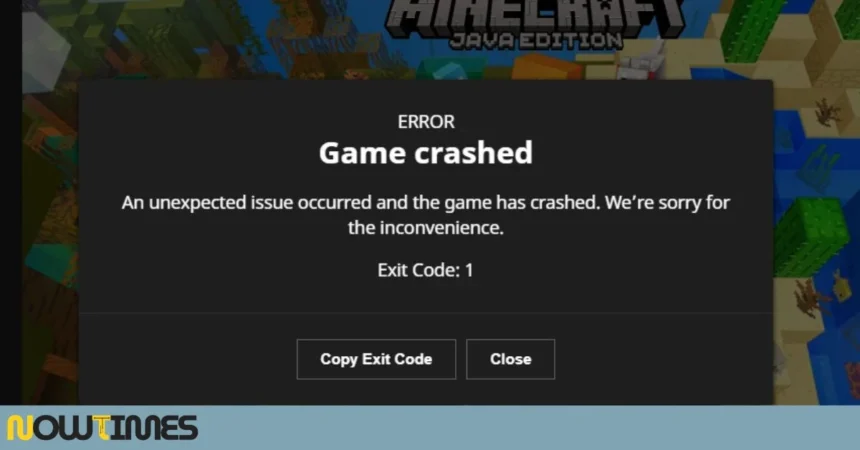
PC gaming is an exhilarating experience, filled with epic battles and immersive worlds. However, when it’s time to wrap up a session or troubleshoot issues, knowing how to properly close your games can save you from headaches down the line. Many gamers underestimate the importance of exiting a game correctly; it maintains system performance and prevents annoying glitches during your next playthrough.
Whether you’re looking to exit gracefully through in-game menus or need to tackle an unresponsive title via Task Manager, this guide will walk you through easy methods specific for Windows users. Get ready to optimize your gaming routine and ensure a smooth transition from pixelated action back into reality!
Method 1: Using the In-Game Menu
One of the simplest ways to close a game on PC is through the in-game menu. Most games feature an accessible menu that allows you to exit without any hassle.
Typically, you can find this option by pressing the “Escape” key or navigating to your designated pause button. Once you’re in the menu, look for options like “Quit,” “Exit Game,” or even “Return to Desktop.” It’s usually located at the bottom or top of your screen.
This method ensures that all progress is saved and minimizes risks such as corrupted files. It’s also a great way to leave with style, often accompanied by animations or sound effects designed for seamless transitions out of gameplay.
Remember, not every game follows the same path, so familiarize yourself with each title’s specific layout for smoother exits.
Method 2: Using Task Manager
When your game freezes or becomes unresponsive, Task Manager is a reliable tool. It allows you to force close any application quickly.
To access it, right-click the taskbar and select “Task Manager.” You can also press Ctrl + Shift + Esc for a faster shortcut.
Once open, navigate to the “Processes” tab. Here, you’ll see a list of all running applications. Locate your game in this list; it might take some time if there are several programs running.
Select the game’s name and click on the “End Task” button at the bottom right corner of the window. This action forcibly shuts down the game without affecting other processes on your PC, maintaining overall system stability while getting rid of that pesky frozen screen.
Method 3: Using Keyboard Shortcuts
Keyboard shortcuts can be a game-changer for PC gamers. They offer a quick and efficient way to close games without fumbling through menus.
One of the most common shortcuts is Alt + F4. Pressing these keys together will immediately close the active window, including your game. It’s straightforward and saves precious time during intense gaming sessions.
Another useful shortcut is Ctrl + Shift + Esc. This combination launches Task Manager directly, allowing you to manage applications swiftly. From there, you can select your game and end it with just a click.
Using keyboard shortcuts not only enhances efficiency but also minimizes interruptions in gameplay flow. Mastering them can make your gaming experience smoother and more enjoyable, especially during those late-night sessions when every second counts.
Additional Tips for Closing Games on PC
Sometimes, closing a game on PC isn’t as straightforward as it seems. Here are some additional tips to streamline the process.
First, make sure your system is up-to-date. Running outdated drivers can cause games to freeze or crash, making them harder to close properly. Regular updates not only improve performance but also enhance stability.
Next, consider using third-party software designed for game management. These tools can help you manage multiple games more efficiently and may offer quicker ways to shut them down.
Another useful tip involves checking your game’s settings before starting. Some titles allow you to adjust exit options directly in their configurations. Familiarizing yourself with these settings can save time later on.
Keep an eye on resource usage while gaming. If your computer starts lagging significantly, be ready to close the game quickly through Task Manager or keyboard shortcuts instead of waiting for it to respond.
Common Mistakes to Avoid When Closing Games on PC
Many players rush to close their games, leading to potential issues. One common mistake is using the “X” button instead of exiting through the game’s menu. This can cause data loss or create corrupted save files.
Another misstep is neglecting background processes. When you force-close a game without checking Task Manager, it may leave lingering processes that consume resources and slow down your system.
Forgetting to save progress before closing can be frustrating. Always ensure you’ve saved your game properly if applicable; otherwise, you might lose hours of gameplay.
Some users think Alt+F4 is always safe for quitting any application. While effective in most cases, this shortcut may not allow games to shut down correctly every time.
Avoid closing multiple tabs or windows while playing in fullscreen mode; this can disrupt performance and lead to crashes when attempting to exit a game smoothly.
Final Thoughts
Properly closing a game on PC is more than just a matter of preference; it can significantly impact your gaming experience and system performance. Whether you choose to use the in-game menu, Task Manager, or handy keyboard shortcuts, understanding these methods can save time and prevent frustration.
Remember the additional tips provided for ensuring smooth exits from your games. Avoid common mistakes that could lead to data loss or corrupted files. With these strategies at your fingertips, you’ll be well-equipped for an enjoyable and efficient gaming session every time you log in. Happy gaming!
Read More: What Games Have Aim Assist on PC? Full List & Guide (2026)