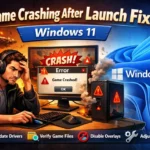



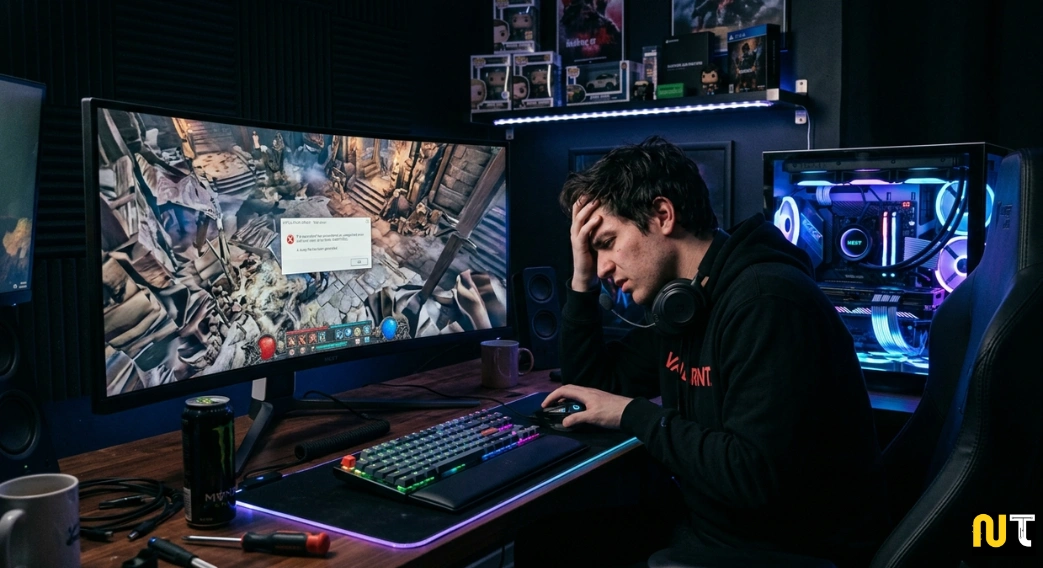

Gaming on PC is usually smooth and enjoyable, but nothing ruins the experience faster than a game suddenly crashing. If you are trying to figure out how to fix random game crashes on PC, you are not alone. Many PC gamers experience problems where a game freezes, crashes to desktop, or closes without any error message.
This can happen during intense gameplay, while loading a new level, or sometimes even right after launching the game. The frustrating part is that the crash often happens without any clear warning.
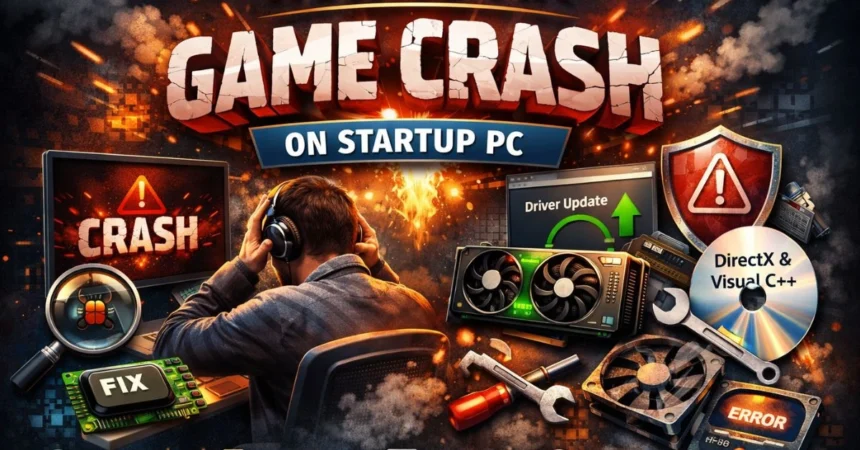
The good news is that most PC game crashes have simple causes and solutions. In many cases the issue is related to outdated drivers, overheating hardware, corrupted game files, or system conflicts.
In this guide you will learn:
- Why games crash on PC
- How to diagnose the crash cause
- Step-by-step methods to fix random game crashes on PC
- How to prevent crashes in the future
Why Games Crash on PC
Before fixing the problem, it helps to understand the most common reasons games crash on PC.
Common Causes of PC Game Crashes
- Outdated graphics drivers
Old GPU drivers often cause compatibility problems with modern games. - GPU overheating
When the graphics card temperature becomes too high, the system may shut down the game. - Corrupted game files
Interrupted updates or downloads can damage game files. - DirectX errors
Many games rely on DirectX to render graphics correctly. - RAM instability
Faulty or insufficient RAM can cause random crashes during gaming. - High graphics settings
Running games at settings beyond your system capability can lead to crashes. - Windows compatibility issues
Sometimes Windows updates temporarily break game compatibility.
Understanding these causes helps you troubleshoot the problem faster.
How to Fix Random Game Crashes on PC (Step-by-Step)
Follow these methods in order. In most cases one of these fixes will solve the problem.
1. Update Your Graphics Drivers
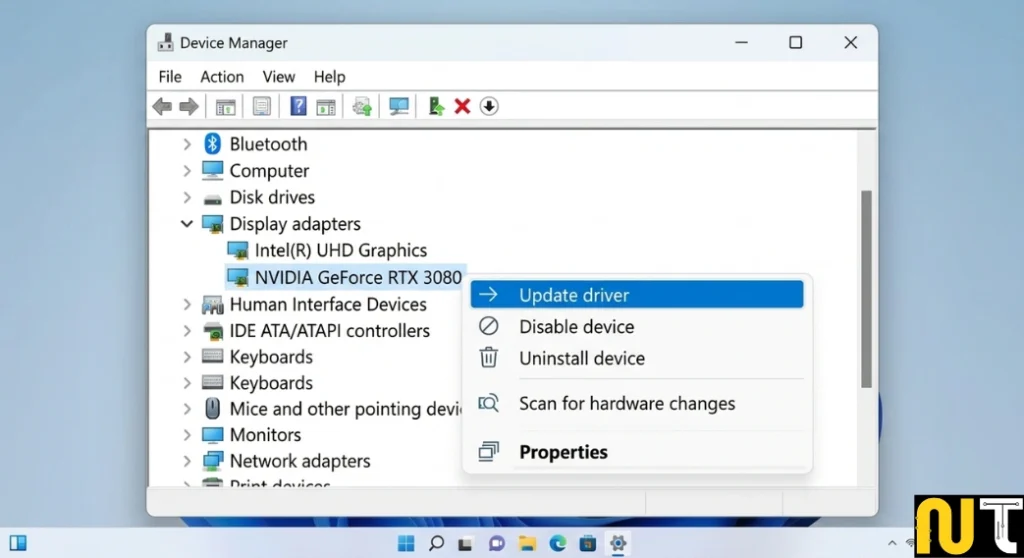
Outdated GPU drivers are one of the most common causes of PC game crashes.
Modern games depend heavily on graphics drivers to communicate with the system.
Steps to Update Graphics Drivers
- Press Windows + X
- Click Device Manager
- Expand Display Adapters
- Right-click your graphics card
- Select Update Driver
You can also download the latest drivers directly from the GPU manufacturer website.
Updating drivers often fixes:
- game crash to desktop
- GPU driver crash
- game crashing after update
2. Check Windows Event Viewer
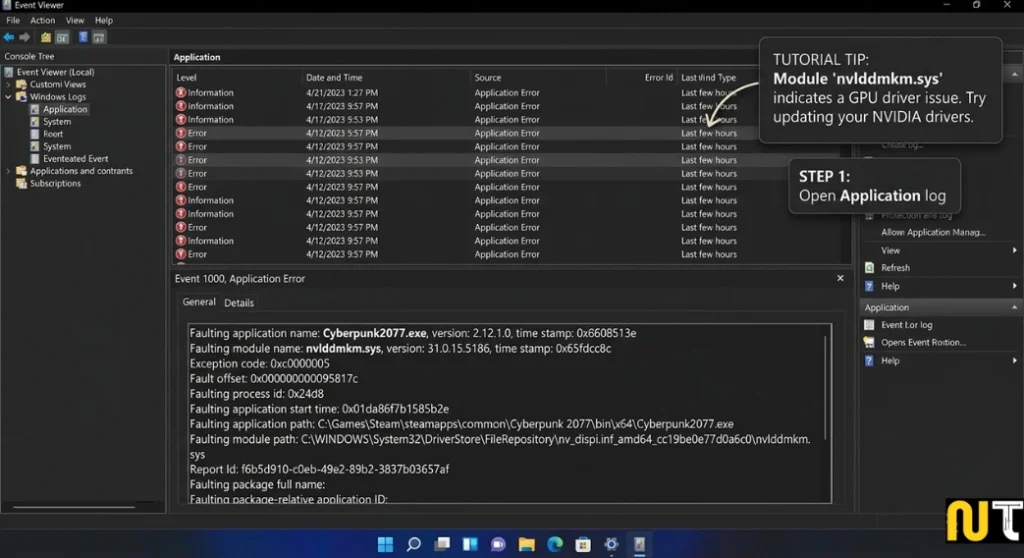
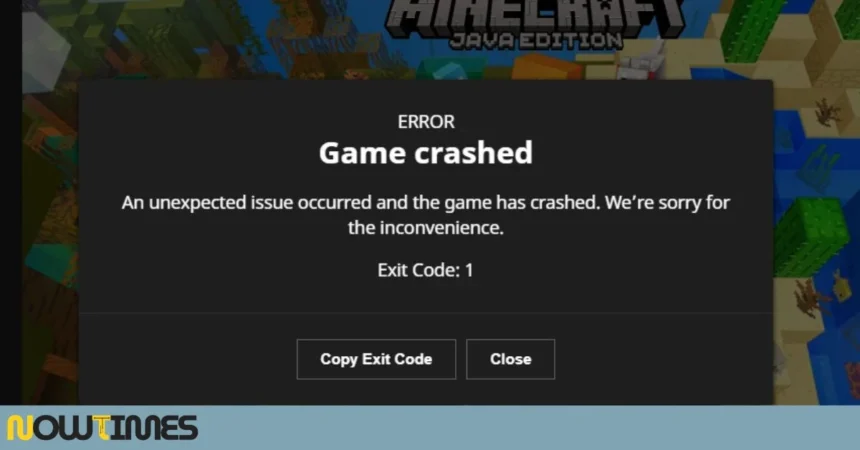
If your game crashes without showing an error message, Event Viewer can help identify the cause.
How to Check Crash Logs
- Press the Windows key
- Search Event Viewer
- Open Windows Logs
- Click Application
- Look for error logs related to the game
These logs may show:
- DirectX errors
- driver crashes
- memory access issues
This step helps diagnose gaming crashes more accurately.
3. Verify Game Files
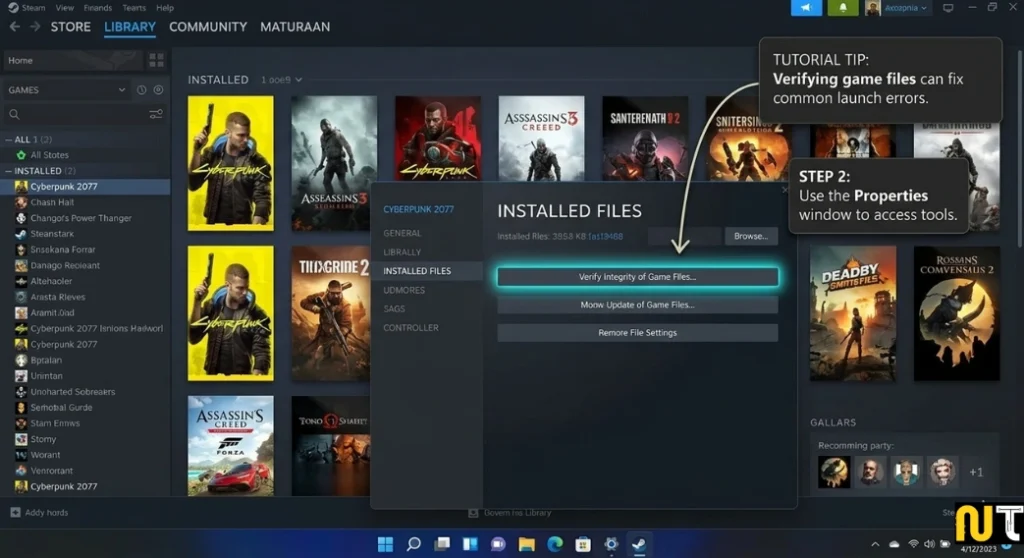
Corrupted game files are another common reason games crash.
Most game platforms include a built-in verification tool.
Example (Steam)
- Open Steam Library
- Right-click the game
- Click Properties
- Select Installed Files
- Click Verify Integrity of Game Files
The launcher will scan the installation and replace damaged files.
This fix often solves game crash on startup problems.
4. Lower In-Game Graphics Settings
If your system is running near its hardware limits, lowering graphics settings can improve stability.
Settings You Can Reduce
- texture quality
- shadow quality
- ray tracing
- anti-aliasing
- resolution
Reducing these settings lowers GPU load and VRAM usage, which prevents crashes.
5. Check GPU Temperature
Overheating graphics cards frequently cause random game crashes on PC.
If the GPU becomes too hot, the system may automatically close the game.
Signs of Overheating
- game crashes after long gameplay
- loud fan noise
- FPS drops before crash
- system stuttering
Solutions
- clean dust from PC fans
- improve case airflow
- monitor GPU temperature
- replace old thermal paste
Even simple cleaning can significantly improve stability.
6. Fix DirectX Errors
Many games rely on DirectX components to render graphics.
If these components are missing or outdated, the game may crash.
How to Fix DirectX Issues
- Download the latest DirectX installer from Microsoft
- Install required components
- Restart the PC
You should also install Microsoft Visual C++ Redistributables, which many games require.
7. Test Your RAM
RAM problems can cause:
- random game crashes
- freezing
- blue screen errors
How to Test RAM
- Press Windows key
- Search Windows Memory Diagnostic
- Restart the PC and run the scan
If errors appear, replacing the faulty RAM usually solves the issue.
8. Fix Game Crash After Windows Update
Sometimes crashes start immediately after a Windows update.
This usually happens due to driver compatibility problems.
Possible Fixes
- update GPU drivers
- install optional Windows updates
- reinstall DirectX components
- update the game to the latest version
9. Close Background Applications
Background programs can interfere with gaming performance.
Examples include:
- screen recording software
- Discord overlay
- heavy browser tabs
- monitoring tools
Closing unnecessary programs frees system resources and improves stability.
How to Prevent Game Crashes in the Future
Once the issue is fixed, follow these habits to reduce the chance of future crashes.
Best Practices for Stable Gaming
- keep graphics drivers updated
- clean dust from your PC regularly
- maintain good airflow inside the case
- monitor GPU and CPU temperatures
- install game updates
These steps help maintain a stable gaming system.
Frequently Asked Questions
Why do games crash randomly on PC?
Games usually crash because of outdated drivers, overheating GPUs, corrupted game files, or insufficient system resources.
How do I stop games from crashing on PC?
Update graphics drivers, verify game files, reduce graphics settings, check temperatures, and close unnecessary background programs.
Can RAM cause games to crash?
Yes. Faulty or unstable RAM can cause random crashes, freezing, and blue screen errors during gaming.
What causes game crashes without an error message?
Driver conflicts, DirectX errors, or system instability can cause crashes without displaying an error message.
Conclusion
Learning how to fix random game crashes on PC may seem difficult at first, but most crashes come from a few common problems such as outdated drivers, overheating GPUs, corrupted game files, or Windows compatibility issues.
By following the troubleshooting steps in this guide—updating drivers, verifying game files, monitoring temperatures, and adjusting graphics settings—you can solve the majority of PC gaming crashes.
Taking care of your system with regular updates and proper cooling will also help ensure a smoother gaming experience in the future.