


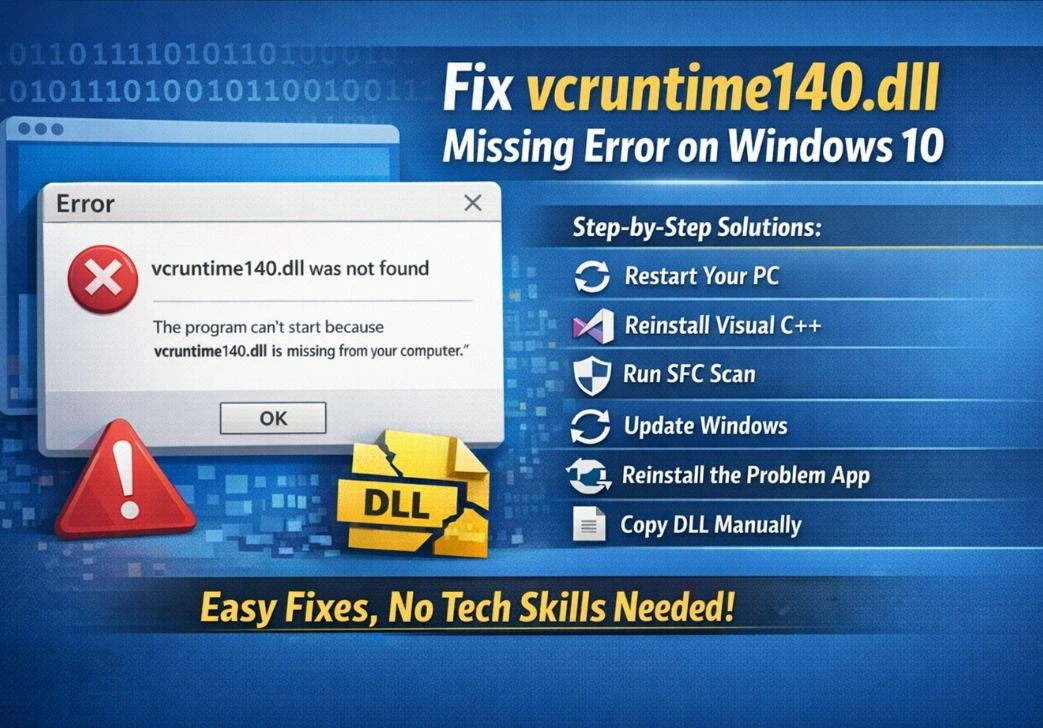

You double-click a program, and instead of opening, it throws a pop-up at you: “vcruntime140.dll was not found” or “the program can’t start because vcruntime140.dll is missing from your computer.” If you’ve seen that message, you already know how frustrating it feels—especially when you have no idea what that file is or why it suddenly vanished.
Here’s the thing: this error is extremely common on Windows 10, and in most cases it is not a sign that something is seriously wrong with your PC. It usually means one specific runtime file that a program depends on is either gone, damaged, or was never installed properly in the first place.
This guide covers everything you need to know about the vcruntime140.dll missing error fix on Windows 10—what the file does, why the error shows up, and six tested methods to get rid of it for good. By the end, you will know exactly what to try, in what order, and why each step works.
What Exactly Is vcruntime140.dll?
Before diving into fixes, it helps to understand what you are actually dealing with. vcruntime140.dll is a Dynamic Link Library file that is part of the Microsoft Visual C++ 2015 Redistributable package. The number “140” refers to version 14.0 of the Microsoft Visual C++ compiler, which is the toolset that developers use when they build applications for Windows.
DLL files work like shared toolkits. Instead of every application packing its own version of common programming functions, Windows lets multiple programs draw from a single central file. This saves disk space and keeps the operating system efficient. When a developer writes a program using Microsoft’s Visual C++ compiler, that program often relies on vcruntime140.dll to handle low-level tasks like memory management, exception handling, and basic runtime operations.
When that shared file is missing or broken, any program that depends on it will simply refuse to launch. Windows cannot locate what it needs, so it stops right there and throws the missing DLL error in your face.
Think of vcruntime140.dll as the foundation of a building. If the foundation cracks or disappears, everything sitting on top of it collapses — even if those programs themselves are perfectly fine.
What Causes the vcruntime140.dll Missing Error on Windows 10?
There is rarely a single cause. This error tends to show up for several different reasons, and knowing which one applies to your situation helps you go directly to the right fix:
- The Microsoft Visual C++ 2015 Redistributable package was never installed, or an installation was interrupted before it completed.
- A third-party PC cleaner or optimizer tool deleted the DLL file, mistakenly flagging it as junk or a leftover.
- A virus or malware specifically targeted and removed or corrupted the file.
- A Windows update did not complete properly and left some runtime components in a broken state.
- The application you are trying to run was installed from an untrusted or unofficial source and came without the required dependencies.
- Hardware issues, such as bad sectors on your hard drive, silently corrupted the file over time.
- Another software installation or uninstallation accidentally overwrote or removed the shared DLL.
Method 1: Restart Your Computer (Do Not Skip This)
A restart is often dismissed as too obvious to bother with, but it genuinely fixes a surprising number of DLL errors. When Windows boots up, certain files are locked in memory by background processes. If a file was temporarily inaccessible when a program tried to load it, the program logs it as missing even though it is still there. A clean reboot clears all that, reloads system services fresh, and often resolves the error without any further action.
Restart your computer, then try launching the program again. If the error disappears, great—you are done. If it comes back the moment you open the same application, work through the methods below.
Method 2: Install or Repair the Visual C++ Redistributable (Primary Fix)
This is the most direct solution for the vcruntime140.dll missing error on Windows 10, and it resolves the problem for the majority of users. Since the file belongs to the Visual C++ Redistributable package, the cleanest fix is to reinstall or repair that package so Windows gets a fresh, verified copy of the file.
Step-by-Step Instructions
- Open your web browser and go to the official Microsoft website. Search for “Visual C++ Redistributable for Visual Studio 2015–2022” (the combined package covers the 2015 version and everything since).
- Download both the x64 and x86 versions. Even if your Windows 10 is 64-bit, many applications still run in 32-bit mode and need the x86 runtime. Install both to cover all your bases.
- Run each installer. If Visual C++ is already present on your system, the installer will offer a Repair option. Choose Repair rather than uninstalling first—it is faster and just as effective.
- Once both installers finish, restart your computer fully.
- Open the program that was giving you the error and check whether it launches normally now.
The combined Visual C++ 2015–2022 Redistributable package is backward compatible, so it takes care of older applications while also supporting newer ones. Installing it is the single most efficient fix available, and it takes under five minutes from start to finish.
Method 3: Run the System File Checker (SFC) Tool
Windows 10 has a built-in repair tool called System File Checker that scans every protected system file on your drive and automatically replaces any it finds to be corrupted or missing. If vcruntime140.dll was damaged by malware, a bad update, or a failing hard drive, SFC can often restore it without requiring any downloads from your side.
How to Run SFC on Windows 10
- Press the Windows key on your keyboard, type cmd into the search bar, then right-click on Command Prompt and select Run as administrator.
- In the black command window that opens, type the following exactly and press Enter: sfc /scannow
- The scan will run for several minutes. Do not close the window, click away, or shut the computer down while it works.
- When it finishes, you will see one of three messages: it found and repaired corrupted files, it found issues but could not fix them, or it found nothing wrong.
- Restart your PC and test the program again.
If SFC reports that it found problems but could not repair them, follow up with the DISM tool. Open Command Prompt as administrator again and run this command: DISM /Online /Cleanup-Image /RestoreHealth. DISM connects to Windows Update servers, downloads clean replacement files, and repairs the local Windows image. Run SFC one more time after DISM finishes for best results.
Method 4: Run a Full Windows Update
An outdated Windows 10 installation is a surprisingly common source of DLL errors. Microsoft regularly ships updates that include refreshed runtime libraries, compatibility patches, and security fixes. If your system has been sitting without updates for a while, some of those runtime files may simply be out of date.
How to Update Windows 10
- Click the Start button, then go to Settings (the gear icon).
- Select Update and Security, then click Windows Update.
- Click Check for Updates and let Windows scan for anything new.
- Install all available updates, including any listed under Optional Updates, which sometimes contains driver and runtime patches.
- Restart your computer once all updates are applied, then retest the application.
Keeping Windows up to date is one of the simplest and most overlooked maintenance habits. It does not just fix error messages—it also patches security vulnerabilities and keeps your system running smoothly overall.
Method 5: Reinstall the Application Triggering the Error
If only one specific program is showing the vcruntime140.dll error, the problem is likely tied to that application’s own installation rather than something system-wide. The program may have been installed with missing or misconfigured components, or its installation folder may have lost files over time.
How to Do a Clean Reinstall
Open Settings, go to Apps, and find the application in the list.
- Click on it and choose Uninstall. Follow the uninstaller through to completion.
- After uninstalling, open File Explorer and manually check the Program Files and Program Files (x86) folders. Delete any leftover folder for that application.
- Also open the AppData folder (press Windows + R, type %appdata%, press Enter) and remove any leftover folders related to the application there.
- Download a fresh installer directly from the developer’s official website. Do not use a third-party download site.
- Run the fresh installer and let it complete. Most legitimate installers include the Visual C++ Redistributable as part of their setup process, so it will reinstall whatever runtime components the program needs.
A clean reinstall is particularly effective for games and creative software, which tend to bundle their own versions of runtime libraries and install them automatically during setup.
Method 6: Manually Copy the DLL File (Last Resort Only)
This method should be treated strictly as a last resort. Manually placing a DLL file does not solve the root cause of the problem, and downloading DLL files from random websites is genuinely dangerous. Many shady DLL sites bundle malware, adware, or trojans inside the very file they offer as a “fix.” Only ever use a file you have extracted from an official Microsoft package.
If you have a verified copy of vcruntime140.dll from a clean source, here is where to place it on Windows 10:
- For 64-bit systems, copy the 64-bit DLL to: C:\Windows\System32
- For 32-bit applications running on a 64-bit system, copy the 32-bit DLL to: C:\Windows\SysWOW64
After placing the file, open Command Prompt as administrator and run: regsvr32 vcruntime140.dll to register it with Windows. Restart and test the application.
Again, if the file keeps disappearing or becoming corrupted after this, you have a deeper underlying problem that manual copying will not fix.
When None of the Above Methods Work
If you have worked through every method listed above and the error persists, the problem runs deeper than a missing runtime file. Here are additional steps worth taking at that point:
- Run a full malware scan using Windows Defender or a reputable third-party antivirus. Some malware specifically targets runtime DLL files as a way to cause instability.
- Check your hard drive for errors by opening Command Prompt as administrator and running: chkdsk C: /f /r. This scans your drive for bad sectors that might be silently corrupting files. You will be asked to schedule it for the next restart, which is normal.
- Perform a clean boot to isolate background software conflicts. Press Windows + R, type msconfig, and under the Services tab, check Hide all Microsoft services, then disable everything else. Restart and test. If the error disappears, a background application was interfered.
- As an absolute final option, perform a Windows 10 repair install (also called an in-place upgrade). This reinstalls the entire operating system over itself without deleting your personal files, apps, or settings, and it restores every system file including runtime libraries to a known good state. You can do this by downloading the Windows 10 Media Creation Tool from Microsoft and choosing Upgrade this PC now.
vcruntime140.dll vs. vcruntime140_1.dll — What’s the Difference?
You might see a slightly different error mentioning vcruntime140_1.dll instead. These two files are related but not the same. The original vcruntime140.dll came with Visual C++ 2015, while vcruntime140_1.dll was introduced with Visual C++ 2019 for applications built with newer versions of the MSVC compiler.
Both files are included in the Visual C++ 2015–2022 Redistributable package that was mentioned in Method 2. Installing that single combined package takes care of both errors at the same time, so you do not need to hunt down separate fixes for each one.
How to Prevent This Error From Coming Back
Once you have resolved the vcruntime140.dll missing error on Windows 10, a few simple habits will stop it from returning:
- Keep Windows updated. Microsoft ships updated runtime libraries as part of regular Windows Update cycles.
- Be selective with PC cleaner and optimizer tools. Many of these tools aggressively delete DLL files they incorrectly flag as junk. If you use one, review its quarantine list before allowing it to delete anything.
- Always download software from official sources. Cracked, pirated, or third-party-hosted installers frequently come with tampered or missing runtime files.
- Run a malware scan at least once a month. Certain types of malware specifically corrupt system files as part of their operation.
- Create a system restore point periodically, especially before installing new software. This gives you a reliable fallback if something goes wrong.
- Back up your PC regularly using either Windows Backup or a third-party solution so that a corrupted system file never means starting from scratch.
Frequently Asked Questions (FAQs)
Q1. Is vcruntime140.dll a virus?
No, vcruntime140.dll is not a virus. It is a legitimate Windows system file that belongs to the Microsoft Visual C++ Redistributable package. That said, malware can sometimes disguise itself using similar-sounding file names. If you are suspicious, scan the file with Windows Defender or your antivirus. The real file should only be located in C:\Windows\System32 or C:\Windows\SysWOW64—not in any other folder.
Q2. Why does the vcruntime140.dll error appear only for certain programs?
Some applications are built with Microsoft’s Visual C++ 2015 compiler and depend directly on vcruntime140.dll to run. Others are built with different tools and have no dependency on that file at all. So the error only appears for programs that specifically require it, while everything else on your computer keeps working normally.
Q3. Will reinstalling Windows fix the vcruntime140.dll missing error?
Yes, a clean Windows reinstall will absolutely fix it because the operating system will be restored to a fresh, complete state with all runtime files intact. However, reinstalling Windows is a drastic step that should only be considered after all other methods have failed. In the vast majority of cases, simply reinstalling the Visual C++ Redistributable resolves the error without needing to touch the OS.
Q4. Can I download vcruntime140.dll directly from a website?
You can, but it is strongly advised against. The safest and most reliable source for this file is the official Microsoft Visual C++ Redistributable installer, which installs the file correctly and registers it with Windows automatically. Downloading a raw DLL from a third-party website is risky because those files are often outdated, modified, or bundled with malware.
Q5. What is the difference between vcruntime140.dll and msvcp140.dll?
Both files belong to the Visual C++ 2015 Redistributable family, but they serve different functions. vcruntime140.dll handles core C runtime operations like memory management and exception handling, while msvcp140.dll contains the C++ standard library functions. You may encounter errors for either file, but both are resolved by installing the same Visual C++ Redistributable package.
Q6. Do I need both the x86 and x64 versions of the Visual C++ Redistributable?
Yes, it is recommended to install both even on a 64-bit system. Many applications, including popular games and software tools, are compiled in 32-bit mode and require the x86 version of the runtime, even when running on a 64-bit version of Windows 10. Installing both takes only a couple of extra minutes and prevents future errors.
Q7. Will this fix work for Windows 11 as well?
Yes. Although this article specifically covers the vcruntime140.dll missing error fix for Windows 10, the same methods apply to Windows 11. The Visual C++ Redistributable package, the SFC tool, the DISM command, and Windows Update all work the same way across both operating systems.
Q8. How do I know which version of Visual C++ Redistributable is already installed?
Open Settings, go to Apps, and search for “Microsoft Visual C++” in the app list. You will see all installed versions listed there. If you see the 2015, 2017, 2019, or 2022 redistributable (both x86 and x64 variants), the required files should already be present. If none are listed, that is your answer—install the package and the error should go away.
Final Thoughts
The vcruntime140.dll missing error on Windows 10 looks scary when it first appears, but it is one of the most straightforward errors to fix once you understand what it means. In most cases, downloading and installing the Microsoft Visual C++ 2015–2022 Redistributable package takes care of it completely, and the whole process takes less than ten minutes.
If the simple reinstall does not work, the System File Checker and DISM tools can repair corrupted system files without any manual effort. Failing that, reinstalling the offending application or running a full Windows update will cover most remaining scenarios.
The key takeaway is this: a DLL error is a missing dependency problem, not a sign that your computer is breaking down. Work through the methods in this guide from the top, and you will almost certainly resolve it long before you reach the more involved options at the bottom.
Keep Windows updated, be careful with PC cleaning tools, and always download software from official sources. Follow those three habits and you are unlikely to see this particular error message again.