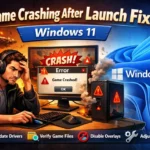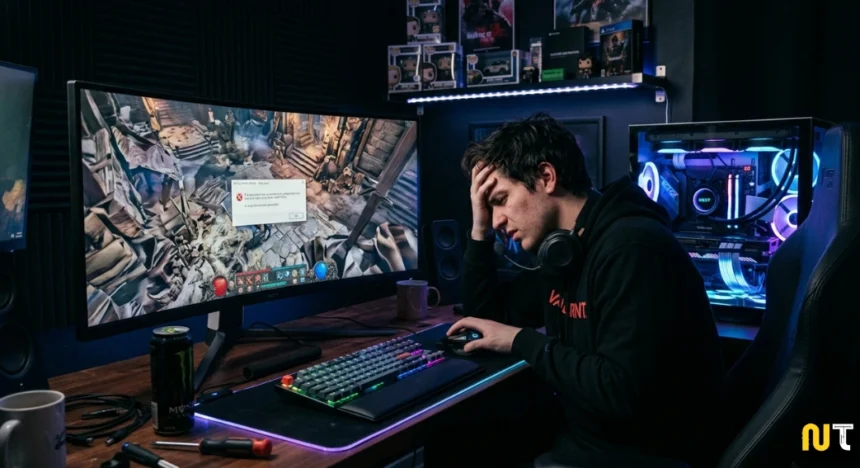


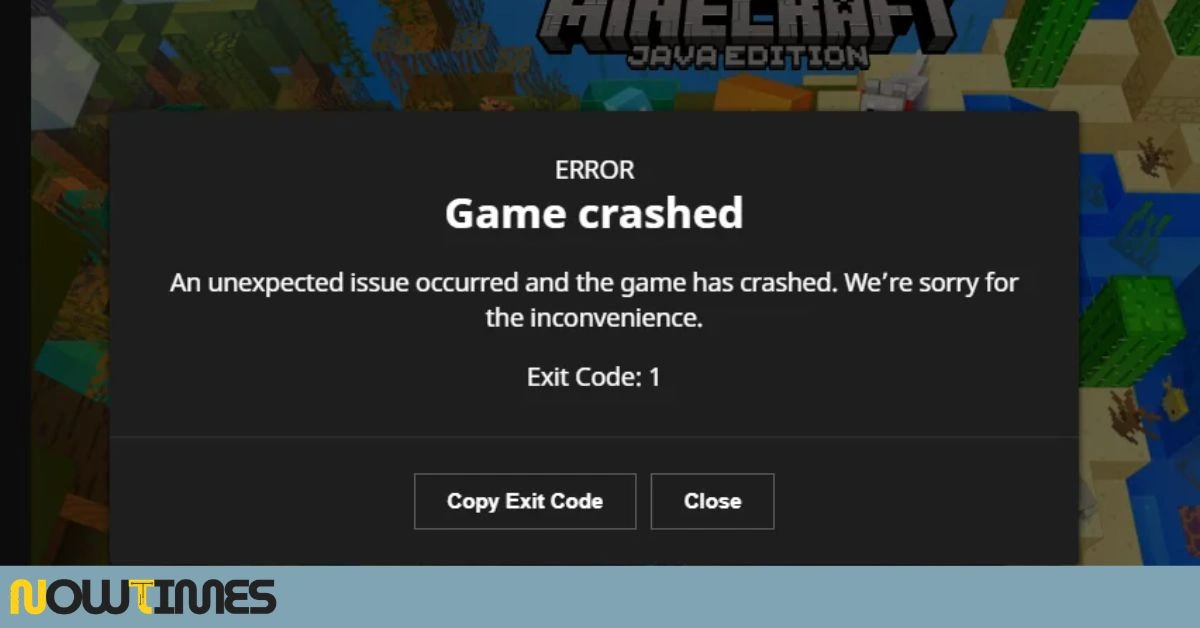

You finally get home, sit down, and see that your favorite game just got a big update. New content, patches, maybe some performance improvements. You hit install, wait for it to finish, and then launch the game — and it crashes. Maybe it crashes on the loading screen. Maybe it gets to the menu and then freezes. Maybe it does not even open at all.
This is one of the most frustrating things that can happen to a gamer. The game worked perfectly yesterday. The update was supposed to make things better. And now you cannot play at all.
The good news is that most post-update crashes are fixable. They are almost never caused by permanent hardware damage. They usually come down to a handful of specific, solvable problems — corrupted files, driver conflicts, outdated settings, or software interference. This guide walks through every proven method for how to fix game crashes after update, step by step, from the simplest checks to the more involved solutions. Work through these in order and you will have a solid chance of getting back into the game before long.
Why Do Games Crash After an Update?
Before jumping into fixes, it helps to understand what actually goes wrong when a game update causes crashes. This is not bad luck — there are real, specific reasons this happens.
Corrupted download: Game updates are large. If your internet connection drops or slows down during the download, some files can install in a damaged state. The game tries to run from broken data and crashes.
Driver incompatibility: Updates sometimes introduce new graphics features that your current GPU drivers do not support. A feature that works on someone else’s machine might crash yours simply because their drivers are newer.
Conflicting software: Overlays, mods, antivirus programs, and recording software all interact with the game’s process. After an update, the game’s code changes — and what worked before can suddenly conflict.
Old configuration files: Games store your settings in config files. When an update changes the expected format of those files, the game can crash trying to read a format it no longer recognizes.
Hardware under stress: Updates often add higher-quality assets or new visual effects. A game your PC ran smoothly before might now push your RAM or GPU past its limits, causing crashes during heavy scenes.
Knowing the cause helps you pick the right solution first. But since you may not always know which of these applies, the steps below are ordered from the simplest and most universally effective to the more specific fixes.
Step 1: Restart Your System Completely
This sounds obvious, but it genuinely fixes a surprising number of post-update crashes and should always be your first move.
Updates often modify system-level components, background services, or driver files that only load correctly after a full reboot. If you installed the update and tried to launch the game without restarting, some of those changes may not have taken effect properly.
Close the game. Close your game launcher — Steam, Epic Games, Battle.net, EA App, or whichever you use. Then restart your computer or console completely. Do not just put it to sleep. After it boots back up, launch the game before opening anything else.
If the crash is gone, you are done. If it persists, move on to the next step.
Step 2: Verify or Repair Your Game Files
This is the single most effective fix for post-update crashes and should be the first technical step you take. Every major game launcher has a built-in tool that checks your installed files against the correct version stored on the server and automatically re-downloads anything that is missing or corrupted.
On Steam:
1. Open your Steam Library.
2. Right-click the game and select Properties.
3. Go to the Local Files tab.
4. Click Verify Integrity of Game Files.
5. Wait for the scan to complete, then relaunch.
On Epic Games Launcher:
6. Open your Library.
7. Click the three-dot menu next to the game.
8. Select Verify.
On EA App or Origin:
9. Right-click the game in your library.
10. Choose Repair.
On Battle.net:
11. Click the game icon.
12. Click the gear icon next to the Play button.
13. Select Scan and Repair.
On PlayStation:
14. Highlight the game on your home screen.
15. Press the Options button and check for updates.
16. If crashes continue, go to Settings, then Storage, then Saved Data, and try deleting and re-syncing the game data.
On Xbox:
17. Press the Menu button on the game tile.
18. Select Manage game and add-ons.
19. Go to Saved data and clear local data.
If any files were corrupted during the update download, this process fixes them automatically. It is the closest thing to a guaranteed first fix.
Step 3: Update or Roll Back Your GPU Drivers
Graphics drivers are one of the most common hidden causes of game crashes, especially after a major update. Game developers often coordinate with NVIDIA and AMD to release updated drivers alongside big patches. Running old drivers means you may be missing critical compatibility fixes.
To update NVIDIA drivers: Open GeForce Experience, click the Drivers tab, and install any available updates. You can also download the latest driver directly from nvidia.com.
To update AMD drivers: Open AMD Adrenalin Software and check for updates, or visit amd.com/en/support.
To update Intel Arc drivers: Use Intel’s Arc Control software or visit intel.com/support.
Here is the important caveat though: if your game was working fine before the update and you also updated your GPU drivers around the same time, the new driver might actually be the problem. Occasionally NVIDIA and AMD release drivers with issues that affect specific games.
To roll back your GPU driver on Windows, open Device Manager, expand Display Adapters, right-click your GPU, select Properties, go to the Driver tab, and click Roll Back Driver. Testing the previous driver version is a step many players skip, and it often turns out to be exactly what was needed.
Step 4: Disable Overlays and Background Software
Overlays like the Discord overlay, Steam overlay, NVIDIA ShadowPlay, and MSI Afterburner inject code directly into the game’s running process so they can display their interfaces while you play. When a game update changes how the game’s executable works, these overlays can conflict with the new code and cause crashes.
The fastest way to test this is to disable them one at a time and launch the game after each to see if that was the cause.
Discord overlay: Open Discord, go to Settings, then Game Overlay, and toggle off Enable in-game overlay.
Steam overlay: Right-click the game in your Steam library, select Properties, and uncheck Enable the Steam Overlay while in-game.
NVIDIA GeForce Experience overlay: Open the app, go to Settings via the gear icon, and toggle off In-Game Overlay.
MSI Afterburner and RivaTuner: Completely close both from the system tray before launching the game.
Also consider temporarily disabling real-time antivirus protection as a test. Some antivirus programs flag newly updated game executables as suspicious and quarantine files the game needs to run. If disabling the antivirus fixes the crash, add your game’s installation folder to the antivirus exceptions list — do not leave protection disabled permanently.
Step 5: Clear the Shader Cache
Games pre-compile shader programs that tell your GPU how to draw environments, lighting, characters, and effects. These compiled shaders are stored on your drive so the game does not have to recompile them every time you play.
When a game updates, its shaders change. But stale compiled shader data from the old version may still be sitting on your system. When the game tries to use those old shaders with new code, the mismatch can cause crashes or strange visual glitches.
To clear the shader cache on Windows, navigate to your AppData folder (press Windows + R, type %AppData%, and press Enter) and look for a folder related to the game. Delete or rename any folder named ShaderCache or DXCache. You can also clear the cache through NVIDIA Control Panel or AMD Software — both have a shader cache option in their settings.
After clearing the cache, expect the game to take slightly longer to load the first time. It is rebuilding the cache from scratch. That is normal and only happens once.
Step 6: Check Your Storage Drive for Errors
If your game is installed on a drive that is developing bad sectors or storage errors, a large update can write data incorrectly onto those damaged areas. The game then crashes when it tries to read from those corrupted sections during play.
On Windows, you can run a disk check by opening Command Prompt as an administrator and typing chkdsk followed by your drive letter, then /f /r, and pressing Enter. For example, if your game is on the C drive, type: chkdsk C: /f /r. You will likely need to schedule the scan for the next restart. Let it complete — it can take 30 to 60 minutes on large drives.
For SSDs, also check the health monitoring software from your drive’s manufacturer. Samsung Magician, Crucial Storage Executive, and Western Digital Dashboard all report drive health in simple terms. If any warning is shown, back up your data as a priority, regardless of whether it is causing game crashes.
Step 7: Lower Your In-Game Graphics Settings
If the game launches but crashes during gameplay — particularly in busy, visually intensive scenes — the update may have added new rendering features that are too demanding for your hardware. The game might have pushed past your GPU’s memory limit or your system RAM, causing a crash.
- Lower or disable these settings first, as they have the biggest impact on hardware load:
- Ray tracing — disable this entirely if you have a mid-range or older GPU
- Shadow quality — reduce from Ultra to High or Medium
- Texture quality — drop by one tier if you are close to your VRAM limit
- Volumetric lighting and fog — reduce or disable
- Anti-aliasing — switch from MSAA to TAA or FXAA
- Resolution scaling — lower from 100% to 85% or 75%
Also try switching from Fullscreen to Borderless Windowed mode. Some crashes happen when the game loses and regains focus, and Borderless Windowed handles this more gracefully.
Step 8: Delete Old Configuration and Settings Files
Configuration files store your in-game settings — keybindings, graphics preferences, audio levels, and more. When a game updates, it sometimes changes the expected format of these files. If the game tries to read an old config file in a format it no longer recognizes, it can crash during startup.
Configuration files are usually stored in one of these locations on Windows:
- C:\Users\YourName\Documents\My Games\GameName
- C:\Users\YourName\AppData\Local\GameName
- C:\Users\YourName\AppData\Roaming\GameName
Back up the entire folder first, then delete or rename the config files — commonly named config.ini, settings.cfg, or GameUserSettings.ini. When you relaunch the game, it will generate fresh default settings automatically.
This fix is especially effective for games that crash immediately on startup without ever showing the main menu.
Step 9: Reinstall the Game
If you have tried every step above and the crash is still happening, a full reinstall is the most thorough option available. Uninstalling and reinstalling completely removes every file from the broken update and replaces it with a clean, full download.
Before uninstalling, verify that your save data is backed up to the cloud through your launcher, or manually copy local save files to a safe location. Most launchers sync saves automatically, but it is worth confirming before you delete anything.
Uninstall the game through your launcher or through Windows Settings under Apps. Then, before reinstalling, manually check for and delete any leftover game folders in Program Files, AppData, and Documents. Leftover files from the old installation can carry over and cause the same problems in the new install if they are not removed first.
Once everything is cleared, install the game fresh. Do not restore old config files — let the game create new ones from scratch.
Step 10: Report the Bug to the Developer
If nothing has worked and you are not the only person experiencing crashes after this update, the problem may be a genuine bug in the patch itself — something the development team needs to fix on their end.
Visit the game’s official forums, subreddit, or support portal and search for threads describing your crash. You will often find either a confirmed workaround posted by other players or an official acknowledgment from the developer that a fix is coming.
Submit a bug report with your system specs, a description of exactly when the crash happens, any error codes or messages you see, and the steps you have already tried. Good bug reports lead to faster hotfixes. Developers usually release patches within days for crashes that affect a large portion of players.
How to Avoid Game Crashes After Future Updates
Once you have solved the current crash, a few habits can reduce the chances of dealing with this again.
Wait before installing major updates: The players who update on day one are the ones who run into the worst bugs. Waiting 24 to 48 hours lets the community identify problems and gives developers time to push hotfixes before you install.
Check mod compatibility before launching: If you use mods, always check whether they have been updated for the new patch version before launching. Running outdated mods against a patched game is a reliable way to cause crashes.
Keep drivers current but read the release notes: A driver labeled Game Ready and released alongside a major game update is usually safe. A brand-new driver with no clear connection to your games is worth waiting a day or two on.
Monitor your hardware health regularly: Tools like HWiNFO64, CrystalDiskInfo, and GPU-Z give you early warning of overheating components or failing drives before they start causing crashes during games.
Keep a note of your working settings: Before any major update, take a screenshot of your graphics settings. If an update introduces instability, you have a clear baseline to return to.
If you’re a student, don’t miss these AI Tools for Grading Student Assignments Automatically to save time and effort.
Frequently Asked Questions (FAQs)
The following questions are commonly searched alongside the main topic and are answered here to give readers additional value and to support long-tail SEO coverage.
Q1. Why does my game keep crashing after every update?
Repeated crashes usually point to one of a few root causes: corrupted update files, outdated or incompatible GPU drivers, conflicting mods or overlays, or system hardware that is struggling to handle new game content. Start by verifying your game files through your launcher, then update your GPU drivers. If crashes still happen, try disabling overlays like Discord or GeForce Experience one at a time to isolate the conflict.
Q2. Does reinstalling the game fix post-update crashes?
Yes, a clean reinstall often fixes crashes that nothing else can. Reinstalling replaces every game file with a fresh download, which eliminates any corrupted data from the failed update. Before uninstalling, make sure your save data is backed up to the cloud or copied to a safe location. After reinstalling, do not restore any old config files — let the game generate new default settings.
Q3. Can mods cause a game to crash after an update?
Absolutely. Mods are one of the most common reasons for post-update crashes on PCs. When a game updates, its internal structure changes. Mods that worked before may now conflict with the updated files. Always check the mod’s page for an updated version after a major game patch. If no update is available, disable all mods and test the game without them to confirm the cause.
Q4. How do I fix game crashes after updating on PlayStation or Xbox?
On PlayStation, go to the game’s page on your home screen, press Options, and check for updates. If crashes persist, try rebuilding the database by booting into Safe Mode (hold the power button for 7 seconds). On Xbox, press the Menu button on the game, go to Manage game and add-ons, and clear local saved data. A full console restart after clearing data often resolves the issue.
Q5. Should I wait before installing a game update?
If you are concerned about stability, waiting 24 to 48 hours before installing a major update is a reasonable approach. The gaming community tends to report widespread bugs quickly on forums, Reddit, and social media. If early players report crashes, you can hold off until the developer releases a hotfix. This is especially worth doing for games with a history of unstable launch-day patches.
Q6. Will updating my GPU drivers always fix a post-update crash?
Not always, but it is one of the first things worth checking. If the game update added new graphics features or API calls, an outdated driver might not support them — causing crashes. However, if a new driver was released around the same time as your game update, the driver itself could be the problem. In that case, rolling back to the previous driver version is the better move.
Q7. What error logs should I look at when a game crashes?
On Windows, open Event Viewer (search for it in the Start menu), navigate to Windows Logs then Application, and look for errors around the time of the crash. Many games also generate their own crash logs inside their installation folder or in your Documents directory — look for files named crashlog, output_log, or error.log. These logs often name the specific file or process that triggered the crash, which can point you toward the right fix.
Final Thoughts
Dealing with a game crash after an update is frustrating, but in most cases it is completely fixable. The key is to work through the steps methodically rather than jumping randomly between solutions. Start with a restart and file verification — these two steps alone resolve the majority of post-update crashes. If those do not work, move through driver updates, overlay conflicts, shader cache clearing, and config file cleanup before reaching for a full reinstall.
Understanding how to fix game crashes after update is a skill every serious gamer benefits from having. Updates are meant to improve the experience. With the right troubleshooting approach, you can make sure they actually do — and spend less time staring at error screens and more time actually playing.
For More Information, Visit Nowtimes