



Introduction
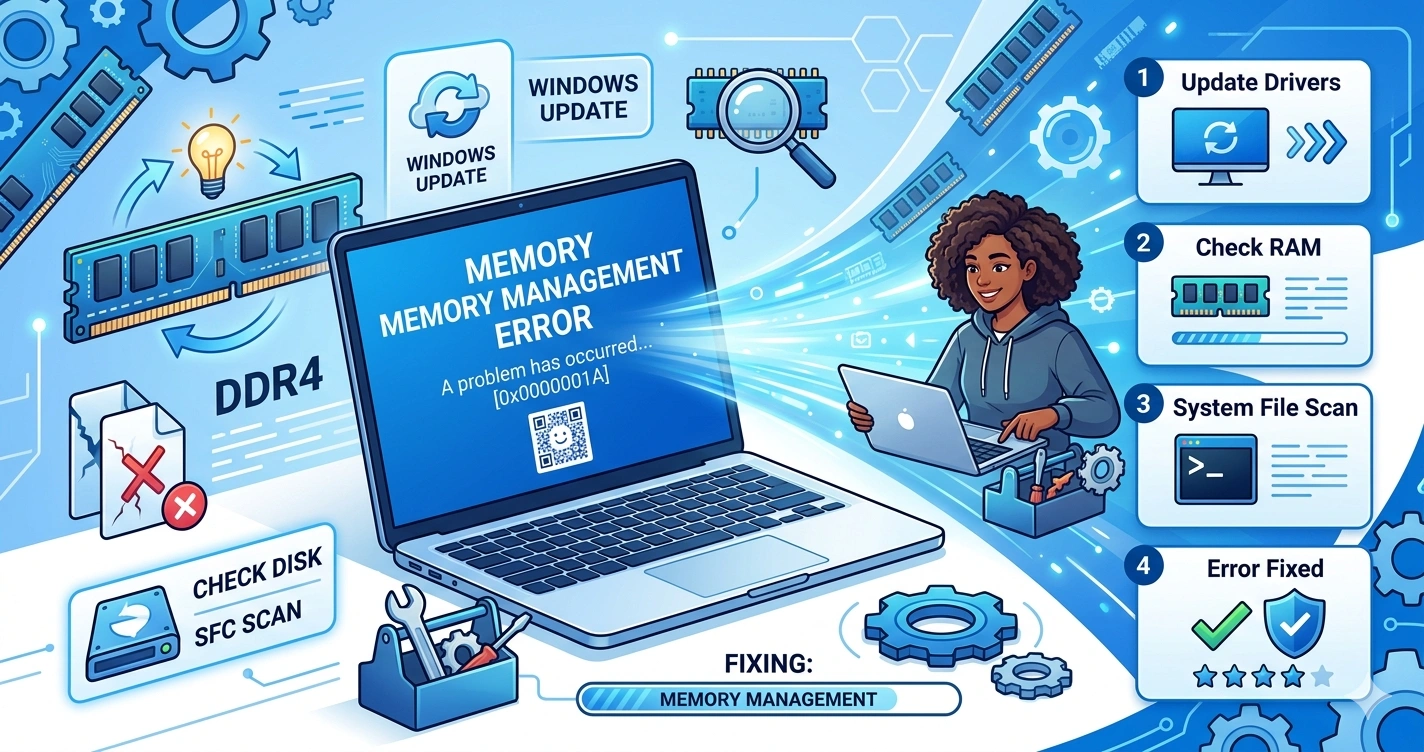
If your computer suddenly crashes and shows a blue screen with a memory management error, it can feel scary—especially if you don’t know what caused it.
The good news? This problem is very common and usually easy to fix.
In this guide, I’ll show you how to fix memory management blue screen errors on Windows 10 and 11 using simple, beginner-friendly steps.
⚡ Quick Fix
If you’re in a hurry, try these quick solutions first:
- Restart your PC
- Run Windows Memory Diagnostic (
mdsched.exe) - Update all drivers
- Run
sfc /scannowin Command Prompt - Scan for malware
- Remove recently installed apps
👉 These steps fix most memory management BSOD errors within minutes.
What is a Memory Management Blue Screen?
A Memory Management Blue Screen (BSOD) happens when Windows detects a problem with your system memory (RAM) or system files.
Think of it like your PC saying:
👉 “Something is wrong with how I’m using memory, so I need to stop to prevent damage.”
Common Causes of Memory Management BSOD
Here are the most common reasons:
- Faulty or damaged RAM
- Outdated or broken drivers
- Corrupted system files
- Malware or viruses
- Software conflicts after installing new apps
👉 If you’re also facing DLL errors, check this guide:
vcruntime140.dll Missing Fix Windows 10: 6 Proven Solutions
👉 Or for gaming-related DLL crashes:
How to Fix the d3dx9_43.dll Missing Error on Windows 11
Step-by-Step: How to Fix Memory Management Blue Screen
1. Restart Your Computer
Sometimes the issue is temporary.
- Click Start → Restart
- Check if the error appears again
2. Run Windows Memory Diagnostic
This tool checks your RAM for problems:
- Press Windows + R
- Type
mdsched.exeand press Enter - Click Restart now and check for problems
✔ If errors appear, your RAM may need replacement or reseating.
3. Update Device Drivers
Outdated drivers often cause memory errors.
- Press Windows + X → Device Manager
- Update:
- Display drivers
- Network drivers
- Storage drivers
- Restart your PC
4. Run System File Checker (SFC)
Fix corrupted Windows files:
- Open Command Prompt (Admin)
- Type: sfc /scannow
- Press Enter and wait
✔ This repairs broken system files automatically.
👉 If system errors continue, read:
vcruntime140.dll Missing Fix Windows 10: 6 Proven Solutions
5. Check RAM Physically (Advanced)
If you’re comfortable:
- Turn off and unplug your PC
- Open the case
- Remove and reseat RAM sticks
- Try different slots
✔ Faulty RAM is a major cause of BSOD errors.
6. Uninstall Recently Installed Software
If the issue started after installing something:
- Go to Settings → Apps → Installed Apps
- Remove the recent program
- Restart your PC
7. Scan for Malware
Viruses can affect memory behavior.
- Open Windows Security
- Run a Full Scan
- Remove any threats
👉 If your games crash too, check:
Game Crashing After Launch Fix Windows 11 (12 Solutions)
How to Prevent Memory Management Errors
Keep your PC healthy with these tips:
- Keep Windows updated
- Avoid pirated or unsafe software
- Use antivirus protection
- Upgrade RAM if needed
- Regularly scan your system
👉 For better performance on low-end PCs:
Best Free Screen Recorder for Low End PC
Quick Fix Table
| Fix Method | Steps |
|---|---|
| Restart PC | Start → Restart |
| Memory Diagnostic | Win + R → mdsched.exe |
| Update Drivers | Device Manager → Update |
| Run SFC Scan | sfc /scannow |
| Check RAM | Reseat or replace |
| Remove Software | Settings → Apps |
- vcruntime140.dll Missing Fix Windows 10: 6 Proven Solutions → under system file errors
- How to Fix the d3dx9_43.dll Missing Error on Windows 11 → under gaming/DLL issues
- Game Crashing After Launch Fix Windows 11 (12 Solutions) → under crash-related problems
- Best Free Screen Recorder for Low End PC → under performance tips
FAQ
Q1: Can a memory management blue screen damage my PC?
No. It’s a safety feature. It stops your system to prevent serious damage.
Q2: Can I fix memory management BSOD without replacing RAM?
Yes. Most issues are software-related and can be fixed using updates and scans.
Q3: Does Windows Update fix memory errors?
Yes. Updates often fix bugs, drivers, and system file issues.
Q4: Does this problem happen on Windows 11?
Yes. It occurs on both Windows 10 and Windows 11, and the fixes are the same.
Q5: How do I know if my RAM is bad?
Use Windows Memory Diagnostic or test with another RAM stick.