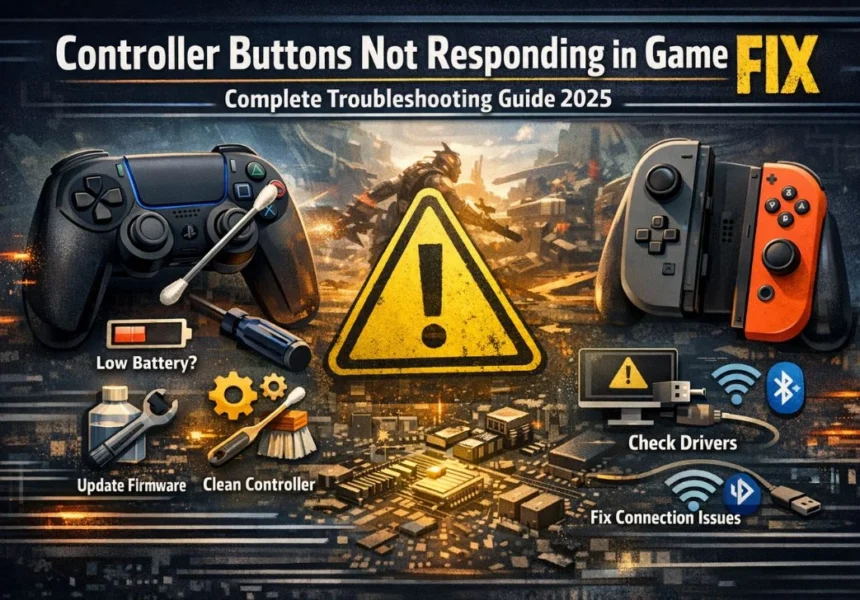




You sit down to play, plug in your controller, and — nothing. The game doesn’t respond. Your cursor doesn’t move. The buttons do absolutely nothing. If this sounds familiar, you’re in the right place.
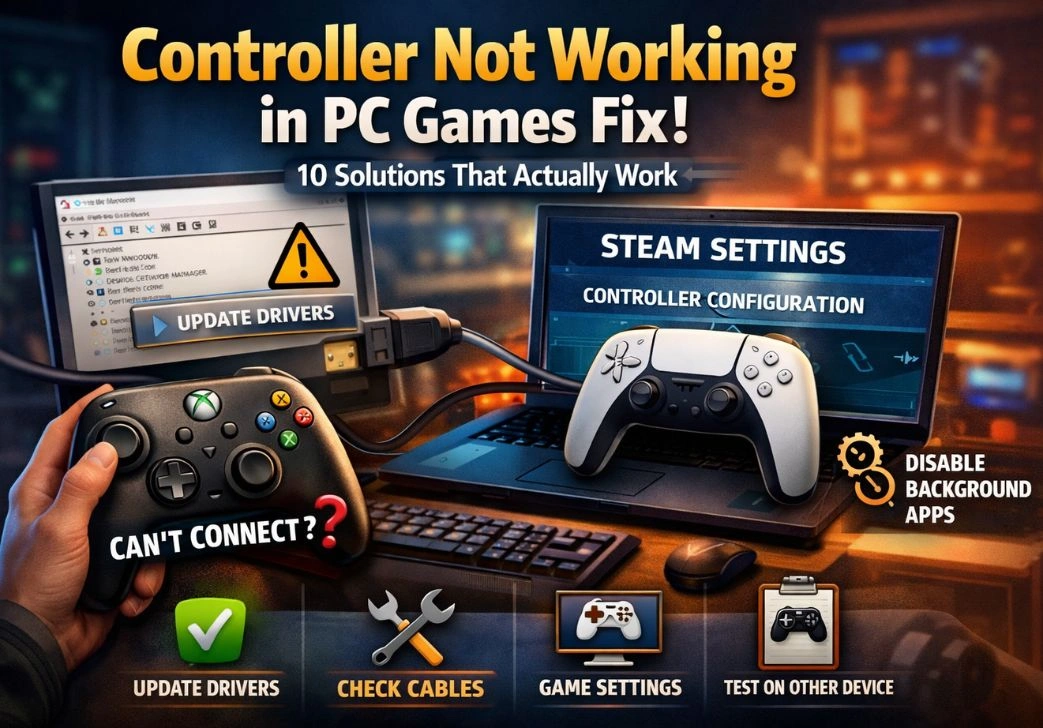
Controller problems on PC are incredibly common, and most of them have a straightforward fix. The trick is knowing where to look. Whether you’re using an Xbox controller, a PlayStation DualShock or DualSense, or some random third-party gamepad you picked up on sale, this guide covers every Controller Not Working in PC Games Fix you actually need — no fluff, no guesswork.
Let’s work through it step by step.
Why Is My Controller Not Working on a PC?
It helps to understand what’s actually failing before you start randomly trying fixes. Most controller problems on PC fall into a few categories:
- Driver issues — Windows didn’t install the right driver, or the driver got corrupted.
- USB port problems — the port you’re using is underpowered or damaged.
- Steam configuration conflicts — Steam’s controller layer is fighting with the game’s own input system.
- Outdated firmware — the controller itself needs a software update.
- Bluetooth pairing errors — the wireless connection is glitched or corrupted.
- Hardware damage — the controller or cable has physical wear you can’t see.
Once you know which category your problem likely falls into, you can skip straight to the relevant fix. If you’re unsure, just start at Step 1 and work down — most people find their solution within the first three or four steps.
Step 1: Do the Physical Checks First
This sounds too simple to bother with, but a surprising number of controller issues are resolved right here. Before touching any settings, go through these physical checks:
Try a Different USB Port
Plug your controller into a port on the back of your PC rather than a front-panel port or USB hub. Front ports and hubs are often underpowered, which can cause controllers to connect poorly or drop out. The back ports connect directly to the motherboard and are far more reliable.
Check Your USB Cable
Cables wear out, especially near the ends where they bend constantly. Grab a different cable and test it. This is one of the cheapest and fastest variables to eliminate.
Replace the Batteries (Wireless Controllers)
Low battery doesn’t just shorten your range — it can cause a wireless controller to connect for a second and then drop, or not connect at all. Put in fresh batteries and test again before moving on.
Re-pair Your Bluetooth Controller
If you’re using Bluetooth, go to Settings > Bluetooth & Devices, find your controller in the list, click the three dots, and select Remove Device. Then pair it again from scratch. A corrupted Bluetooth pairing is more common than you’d think, and this fixes it instantly.
Step 2: Check Device Manager for Driver Problems
If the physical checks didn’t help, your next stop is Device Manager. This is where Windows tracks every piece of connected hardware — and where it tells you when something’s wrong.
Right-click the Start button and open Device Manager. Look under Human Interface Devices and Sound, video and game controllers. Your controller should show up in one of those sections when it’s plugged in.
Yellow Exclamation Mark
If you see a yellow exclamation mark next to your controller, Windows is flagging a driver problem. Right-click the device and choose the Update driver, then let Windows search automatically.
If Updating Doesn’t Work — Uninstall and Reinstall
Right-click the controller device and select Uninstall device. Check the box to delete the driver software if that option appears. Once it’s uninstalled, unplug your controller, wait 30 seconds, then plug it back in. Windows will reinstall the driver fresh, and this often clears issues that a simple update couldn’t fix.
Controller Not Showing Up at All
If your controller doesn’t appear in Device Manager at all, there’s likely a hardware or port issue. Go back to Step 1 and try different ports before continuing.
Step 3: Sort Out Your Steam Controller Settings
If you game through Steam, pay close attention here. Steam has its own controller configuration system — and while it’s powerful, it’s also one of the most common sources of controller conflicts on PC.
Go to Steam > Settings > Controller > General Controller Settings. You’ll see checkboxes for Xbox Configuration Support, PlayStation Configuration Support, and Generic Gamepad Configuration Support.
The Conflict Explained
When Steam’s controller support is enabled, it sends your inputs through a virtual controller layer before they reach the game. If the game also has its own native controller support, both systems compete for input and things break. The game sees a virtual controller instead of your actual hardware, and nothing works right.
Disable all three options and relaunch the game. For a lot of people, this alone is the fix they’ve been looking for.
But What If the Game Has No Controller Support?
Flip it the other way — if the game doesn’t natively support controllers, enabling the appropriate Steam configuration can make it work. Try toggling these settings based on what the game’s Steam page says about controller support.
Per-Game Settings
Right-click the game in your Steam library, go to Properties > Controller, and you can force a specific controller configuration for that game only. This is much cleaner than changing global settings every time.
Step 4: Check Controller Settings Inside the Game
Not every game automatically switches to controller input when you plug one in. Some games default to keyboard and mouse and sit there waiting for you to tell them otherwise.
Load the game and dig into Settings, Options, or Controls. Look for anything labeled Gamepad, Controller, or Input Device. Enable controller support if it’s there, and if the game lets you pick your input device, make sure your controller is the one selected.
Also check whether the game officially supports your specific controller. Some older titles only support Xbox controllers, and plugging in a PlayStation or third-party pad won’t work without extra steps — which we’ll cover next.
Step 5: Use DS4Windows for PlayStation Controllers
PlayStation controllers — both DualShock 4 and DualSense — don’t always behave cleanly on Windows. Microsoft built Xbox controller support directly into Windows, so PlayStation pads get less native love. DS4Windows fixes this.
DS4Windowsis a free tool that creates a virtual Xbox 360 controller from your PlayStation controller’s input. Because almost every PC game supports Xbox controllers, this makes your PS4 or PS5 pad compatible with virtually everything.
Download it from the official GitHub page, install it, and run through the setup. You’ll also need to install the ViGEmBus driver it requires, but the installer walks you through that automatically. Once DS4Windows is running in the background, your PlayStation controller should work in any game that supports controllers at all.
| ⚠️ Important: Don’t run DS4Windows and Steam’s PlayStation Configuration Support at thesame time. Both will try to handle your controller, and the game will see double inputs.Use one or the other — not both. |
Step 6: Update Xbox Controller Firmware
If you’re on an Xbox controller, Microsoft has a dedicated app for managing it. Search for Xbox Accessories in the Microsoft Store and install it. Open it with your controller connected.
If a firmware update is available, install it. Outdated controller firmware causes all kinds of issues — missed inputs, intermittent disconnects, Bluetooth drops — and updating takes about two minutes. It’s an easy one to overlook because most people don’t think of their controller as something that needs software updates.
The Xbox Accessories app also lets you remap buttons and adjust trigger sensitivity, which is handy once your controller is working again.
Step 7: Test Your Controller With the Windows Joystick Panel
Windows has a built-in tool to test whether it’s actually receiving input from your controller. Most people have never used it, but it’s one of the most useful diagnostic tools available.
Press Win + R, type joy.cpl, and hit Enter. The Game Controllers window opens. Your connected controller should appear in the list. Click it and select Properties, then go to the Test tab.
Move your analog sticks and press buttons. The on-screen display should respond in real time. If it does, your controller is working perfectly at the hardware and driver level — which means the problem is with Steam, the game, or its settings. If nothing responds in joy.cpl, the issue is in the driver or the hardware itself.
While you’re in the Properties window, the Settings tab has a Calibrate option. Running calibration can fix issues with drifting analog sticks or dead zones that feel off.
Step 8: Rule Out Windows Update Problems
Windows updates occasionally break controller drivers. It happens more often than it should, particularly with Xbox controllers where Microsoft is managing both ends. If your controller suddenly stopped working after an update, this is worth investigating.
Go to Settings > Windows Update > View Update History and look at what was installed around the time your controller stopped working. If something suspicious shows up, you can try uninstalling it through the Uninstall updates option.
On the other hand, if you haven’t updated in a while, check whether a newer update is available that might have patched a known driver issue. Sometimes the fix is already waiting in your update queue.
Step 9: Fix Input Lag and Missed Inputs
Sometimes the controller connects fine but inputs feel wrong — they lag, occasionally miss, or the analog sticks feel sticky. This is a different problem from full connection failures.
USB Polling Rate Issues
Controllers typically poll at 125Hz, meaning they send input data 125 times per second. Some system configurations create timing issues at this rate. Updating your USB host controller drivers from your motherboard manufacturer’s website can help here. Search for your motherboard model and download the latest USB drivers from the manufacturer’s support page.
Bluetooth Interference
If you’re gaming wirelessly, other 2.4GHz devices — Wi-Fi routers, wireless headsets, even microwave ovens — can interfere. Try moving closer to your PC or switching to a USB cable to test whether the wireless signal is the problem.
Background App Overload
Applications running in the background eat CPU cycles, which can cause frame pacing issues that feel like input lag. Before gaming, close anything you don’t need — especially browsers, system utilities, and streaming apps.
Step 10: Use ReWASD or Xpadder as a Last Resort
If you’ve done everything above and a specific game still won’t recognize your controller, third-party input mapping software can bridge the gap.
ReWASD is a paid application that lets you create a virtual controller and map inputs with a lot of precision. It’s particularly useful for games that only accept keyboard and mouse input — you map your controller buttons to keyboard keys, and the game has no idea you’re using a controller at all.
Xpadder is a simpler, older alternative that does the same basic job. It’s less polished than ReWASD but gets the job done for straightforward key mapping.
These tools are for edge cases — games that refuse to cooperate with everything else. If your controller works in most games and only fails in a specific title, these are your best remaining options.
When the Controller Itself Is the Problem
After going through every software fix, if nothing has worked, it’s worth considering whether the hardware is actually damaged.
Stick Drift
Stick drift is when your analog sticks register movement even when you’re not touching them. It’s caused by worn-down components inside the stick mechanism. It can cause strange behavior in games that looks like a configuration issue — characters moving on their own, camera drifting — but it’s a hardware problem that no driver fix will solve.
Internal Wear
Older controllers that have seen heavy use can develop partial failures where some buttons work and others don’t. A circuit board issue won’t show up in Device Manager or joy.cpl in any meaningful way.
Quick Test
Plug your controller into a different PC or connect it to a console if you have one. If it fails there too, the hardware is done. A replacement is the most practical solution at that point.
Quick Reference: The Fixes That Work Most Often
| 🔧 QUICK TROUBLESHOOTING CHECKLIST Try these in order — most people find their fix in the first four: |
✅ Try a different USB port (back of PC, not front panel or hub)
✅ Reinstall the driver via Device Manager (uninstall > replug)
✅ Disable Steam’s Controller Configuration Support and relaunch the game
✅ Run joy.cpl to confirm Windows is receiving controller input
✅ Install DS4Windows if you’re on a PlayStation controller
✅ Update firmware via Xbox Accessories app if on Xbox controller
✅ Update USB host controller drivers from your motherboard manufacturer
✅ Use ReWASD to force controller support in stubborn games
Working through this list methodically is always faster than trying random fixes. PC gaming involves a lot of layers — the operating system, drivers, Steam, the game itself, and the controller hardware — and any one of them can be the source of the problem. Go through them one at a time and you will find it.
Frequently Asked Questions (FAQs)
Q1: Why is my controller connected but not working in games?
A: Your controller may be connected at the hardware level but still fail in games due to a Steam controller configuration conflict, incorrect in-game input settings, or a driver that’s installed but not functioning properly. Open joy.cpl (Win + R, type joy.cpl) to check whether Windows is actually receiving inputs from your controller. If it shows input there but not in-game, the problem is with Steam or the game settings, not your hardware.
Q2: How do I fix my Xbox controller not working on PC?
A: Start by trying a different USB port, preferably on the back of your PC. Then open Device Manager and check for any driver errors under Human Interface Devices. If an issue shows up, uninstall the device and replug the controller to reinstall the driver cleanly. You should also install the Xbox Accessories app from the Microsoft Store and check for a firmware update for the controller itself.
Q3: Why does my PS4 or PS5 controller not work on PC?
A: Windows doesn’t have built-in support for PlayStation controllers the same way it does for Xbox. Install DS4Windows, which creates a virtual Xbox 360 controller from your PlayStation controller’s inputs, making it compatible with almost every PC game. Make sure you’re not running DS4Windows and Steam’s PlayStation Configuration Support at the same time, as that causes double input issues.
Q4: Does Steam affect how my controller works on PC?
A: Yes, significantly. Steam has its own controller configuration layer that intercepts your inputs and can conflict with a game’s native controller support. If your controller works on the desktop but not in a specific game, go to Steam > Settings > Controller > General Controller Settings and disable Xbox, PlayStation, and Generic configuration support, then relaunch the game.
Q:5 How do I fix controller input lag on PC?
A: Input lag from a controller usually comes from one of three things: Bluetooth interference from other 2.4GHz devices nearby, USB polling rate issues that can be fixed by updating your USB host controller drivers from your motherboard manufacturer’s site, or background applications consuming CPU resources. Try switching to a wired connection first to rule out wireless interference.
Q:6 What is DS4Windows and do I need it?
DS4Windows is a free application that makes PlayStation controllers (DualShock 4 and DualSense) work on PC by translating their inputs into Xbox controller format, which Windows natively understands. You only need it if you’re using a PlayStation controller and having compatibility issues. It’s available on GitHub and is completely safe to use.
Q7: What is joy.cpl and how does it help with controller troubleshooting?
Joy.cpl is a built-in Windows tool that lets you test your controller’s inputs directly — independent of any game or Steam. Press Win + R, type joy.cpl, hit Enter, select your controller, and click Properties. Under the Test tab, move your sticks and press buttons to see if Windows is reading your inputs. If it responds there but not in your game, the issue is in the game or Steam settings, not your driver or hardware.
Q8: Can a Windows update break my controller?
A: Yes, Windows updates occasionally introduce driver conflicts that break controller functionality. If your controller stopped working after a recent update, go to Settings > Windows Update > View Update History and look for updates installed around that time. You can try uninstalling the suspect update, though Windows may reinstall it. Checking for a newer update that patches the issue is often the more lasting fix.
Q9: Why does my controller work on the desktop but not in games?
A: This almost always points to a Steam configuration conflict or a game-level setting. The controller is working — Windows sees it — but the game isn’t receiving its inputs correctly. Disable Steam’s controller configuration in Settings > Controller > General Controller Settings, then check the game’s own options menu for a setting to enable gamepad or controller input.
Q10 : Is ReWASD worth using for controller problems?
A: ReWASD is a paid tool and is only worth it in specific situations — particularly when a game has no native controller support and you need to map controller buttons to keyboard keys. For standard controller compatibility issues, DS4Windows (free) or Steam’s configuration support will handle it. ReWASD is best used as a last resort for stubborn individual games that simply won’t cooperate with any other approach.