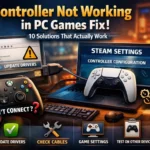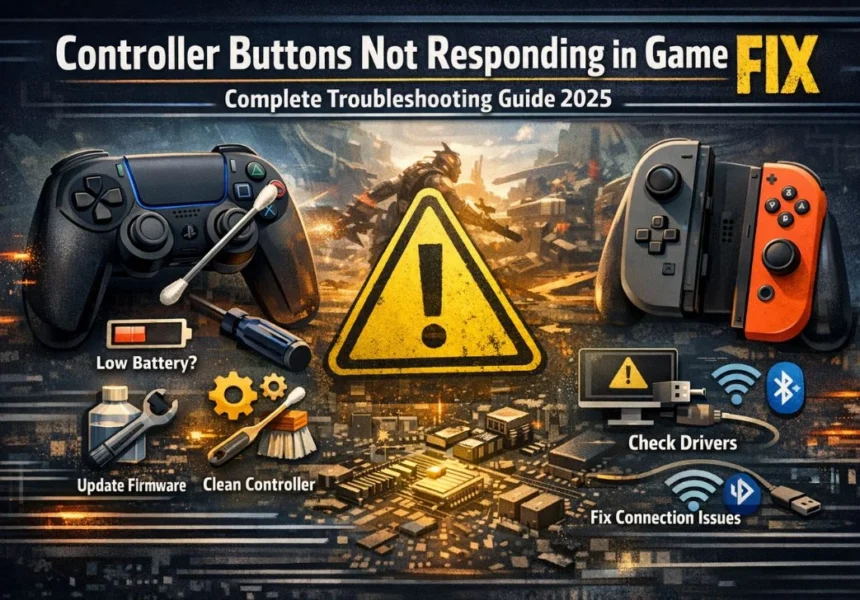


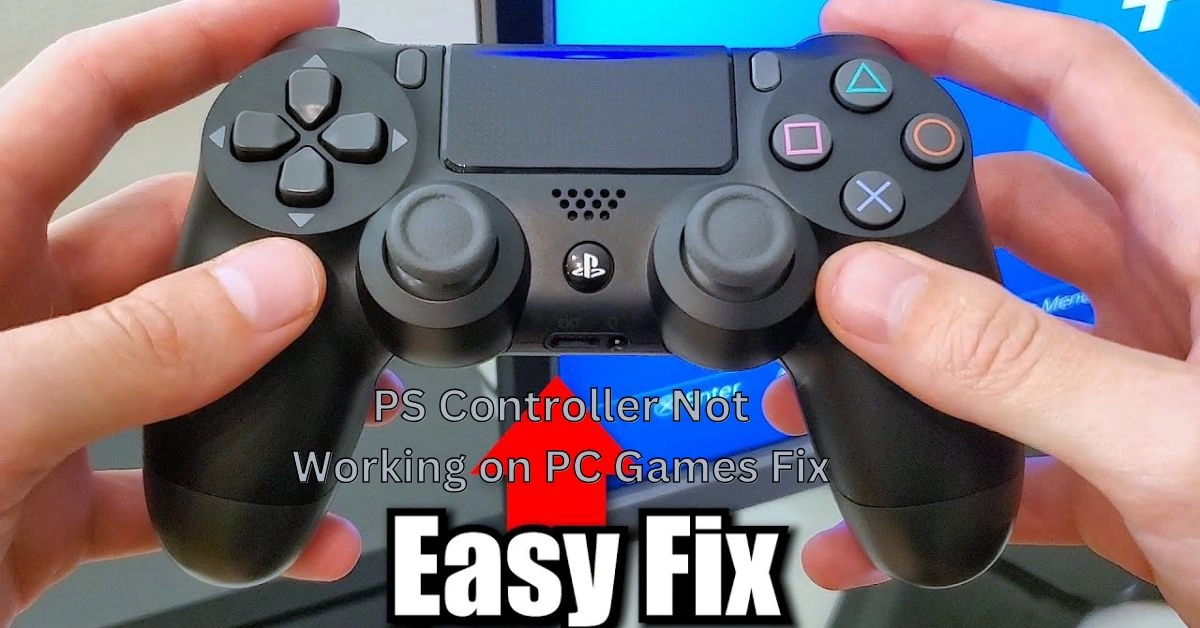

You sat down to play your favourite PC game, plugged in your PlayStation controller, and nothing happened. Or maybe the buttons are misfiring, the game is not detecting any input, or the controller keeps disconnecting every few minutes. Whatever the exact symptom is, the result is the same — a session ruined before it even starts.
Here is the thing: this problem is far more common than most people think. PlayStation controllers were built for Sony consoles, and Windows was not originally designed to speak their language. That gap between Sony and Microsoft standards is exactly where most of these issues come from. The good news is that every single one of those issues has a fix, and you do not need to be a tech expert to apply them.
This guide gives you a complete ps controller not working on PC games fix from start to finish. We will cover PS3, PS4, and PS5 controllers, both wired and wireless setups, game-specific issues, driver problems, Bluetooth failures, and everything else that might be standing between you and your game.
Why Does a PS Controller Stop Working on PC in the First Place?
Understanding the cause saves you a lot of time. Windows uses something called XInput — Microsoft’s own standard for game controllers. Xbox controllers are built around this standard, which is why they work immediately when plugged into a PC without any extra steps.
PlayStation controllers use a different protocol. Windows does not understand it natively, at least not completely. Depending on your Windows version, your game, and the specific controller model, the experience can range from flawless to completely broken.
Here are the most common reasons a PS controller stops working on PC:
- The controller driver is missing, outdated, or corrupted
- The USB cable is charging-only and does not carry data
- Bluetooth is paired but not communicating properly
- Two controller tools are running at the same time and conflicting
- The specific game only supports Xbox XInput format
- Steam Input is clashing with a third-party driver tool
- The controller firmware is out of date
- The controller itself needs a hardware reset
Most people land in one of the first four categories. Work through the steps below in order, and you will almost certainly find your fix before reaching the end.
Start Here: Quick Fixes That Solve Most Problems
Before diving into driver reinstalls or software configurations, try these basic checks. They fix the issue more often than you would expect.

Restart Your PC and Controller Completely
A full restart — not sleep, not hibernate — clears temporary system states that prevent controller recognition. Unplug the controller, shut down your PC entirely, wait 30 seconds, boot back up, and reconnect. This alone resolves a surprising number of cases.
Replace Your USB Cable
This is possibly the single most overlooked fix. Many USB cables included with accessories are charge-only — they carry power but not data. If you are connecting your controller via USB and the PC is not detecting it, the cable is the first thing to swap. Use a known data-capable cable, and plug it into a USB port on the back of your desktop or directly on your laptop rather than through a hub.
Remove and Re-Pair Bluetooth
If you are connecting wirelessly, your PC might be holding onto a bad Bluetooth pairing. Go to Windows Settings, then Bluetooth and Devices, find your controller in the list, click the three-dot menu next to it, and choose Remove Device. Then put your controller into pairing mode and set it up fresh. For a DualShock 4, hold the PS button and Share button together. For a DualSense, hold PS and Create.
Run Windows Update
Microsoft has added native support for PlayStation controllers through Windows Update over time. If your system is several updates behind, a simple update check might install the driver your controller needs automatically.
How to Fix a PS4 DualShock 4 Controller Not Working on PC
The DualShock 4 has been around since 2013, and PC support has improved significantly. However, it still needs a little setup to work reliably.
Method 1: Use DS4Windows (Recommended for Most Users)
DS4Windows is a free, open-source tool that makes Windows treat your DualShock 4 exactly like an Xbox controller. This solves compatibility issues across virtually all games because it converts Sony’s input protocol into Microsoft’s XInput standard.
Here is how to get it working:
1. Search for DS4Windows on GitHub and download the latest release
2. Extract the ZIP file somewhere easy to find, like your desktop
3. Run DS4Windows.exe and follow the first-time setup wizard
4. Install the drivers when prompted — this step is essential
5. Connect your DualShock 4 by USB or pair it over Bluetooth
6. Your controller should now appear in DS4Windows and work in games
One important note: if you also use Steam, you need to turn off Steam’s PlayStation controller support while DS4Windows is running, or they will conflict. In Steam, go to Settings, then Controller, then General Controller Settings, and uncheck PlayStation Configuration Support.
Method 2: Native Windows Driver
If you prefer not to use DS4Windows, Windows does have some native DS4 support — especially on Windows 11 and fully updated Windows 10. Connect the controller via USB, open Device Manager, and look under Human Interface Devices. If the controller shows a yellow warning triangle, right-click it and choose Update Driver. Let Windows search automatically.
Method 3: Use Steam Input
If you primarily play through Steam, you can let Steam handle everything. Connect your controller, open Steam, go to Settings, then Controller, then General Controller Settings, and check PlayStation Configuration Support. Steam will map your controller inputs automatically for any game in your library. This approach works well but only applies to games you launch through Steam.
How to Fix a PS5 DualSense Controller Not Working on PC
Sony’s DualSense has some of the best PC support of any PlayStation controller, especially over USB. But there are still situations where it needs help.
Wired USB Connection
The DualSense connects via USB-C. On Windows 10 version 1903 and later, and on all versions of Windows 11, it should be recognized automatically when plugged in. If it is not, open Device Manager, find any unrecognized devices, right-click, and choose Update Driver. Running Windows Update is also worth trying since Microsoft has pushed DualSense drivers through standard updates.
Enabling DualSense in Steam
Steam gives the DualSense excellent native support, including haptic feedback and adaptive trigger functionality in compatible games. Open Steam, go to Settings, then Controller, and click General Controller Settings. Check both PlayStation Configuration Support and PlayStation 5 Controller Support. Launch your game and Steam will handle the input translation automatically.
DualSense on Non-Steam Games
For games from other launchers like Epic Games Store or GOG, the DualSense may not be recognized at all. The solution is to use DualSenseX, a free tool built specifically for the DualSense on PC. It emulates an Xbox controller the same way DS4Windows does, and it also preserves haptic feedback and adaptive trigger features in supported titles. Download it from the official DualSenseX website and follow the setup instructions.
Update DualSense Firmware
Sony releases firmware updates for the DualSense that can fix Bluetooth stability, connectivity bugs, and input lag. You can update the firmware through your PS5 console, or by downloading Sony’s official DualSense firmware updater for PC directly from PlayStation’s support website.
How to Fix a PS3 DualShock 3 Controller Not Working on PC
The PS3 controller is the most difficult to get working on a PC because it uses a non-standard Bluetooth stack that Windows cannot handle without extra help.
Use BthPS3 Drivers
BthPS3 is currently the best solution for PS3 controllers on PC. It patches your Windows Bluetooth stack to support the DualShock 3 protocol. Download BthPS3 from its GitHub repository, run the installer, connect your PS3 controller via USB first to let the driver install, and then pair it over Bluetooth. Standard Windows Bluetooth will not work with PS3 controllers no matter what you try — BthPS3 is genuinely necessary.
PS Controller Works on Desktop But Not Inside a Specific Game
This is one of the most frustrating situations because everything seems fine — Windows detects the controller, it shows up in DS4Windows — but the moment you launch a game, nothing responds. This is almost always a game-compatibility issue.
The Game Only Supports XInput
Older PC games and many ports were built to support only Microsoft’s XInput standard. They do not know what to do with a PS controller’s native signal. DS4Windows or DualSenseX solves this by translating your inputs into the Xbox format the game expects. Once you set those tools up, your controller will work — the only downside is that button prompts in-game will show A, B, X, Y instead of Cross, Circle, Square, Triangle.
Check the Game’s Controller Settings
Some games have their own input configuration menus. Go into the game’s settings and look for a Controls or Input section. Select your controller from any dropdown list. Some games also ask you to press any button to confirm a detected controller — press any button on your PS controller when prompted.
Anti-Cheat Software Conflicts
A small number of online games use anti-cheat systems that flag third-party controller emulation software as suspicious. If you are having trouble with a specific multiplayer game, check the game’s official forum or support page for information on controller compatibility. Some games officially support PS controllers directly and do not need emulation at all.
Driver and System-Level Fixes for Persistent Problems
If you have worked through everything above and the problem is still there, it is time to go a level deeper.
Fully Uninstall and Reinstall Controller Drivers
Updating a corrupted driver rarely fixes the corruption — you need to remove it completely and start fresh. Open Device Manager, find your controller under Human Interface Devices, Bluetooth, or Other Devices. Right-click it and choose Uninstall Device. If there is an option to also delete the driver software, check that box. Unplug the controller, restart your PC, then reconnect and let Windows build the driver from scratch.
Check for Conflicting Software
Two controller tools running at the same time will fight over the device and both fail. Open Task Manager and make sure there are no background processes from DS4Windows, DualSenseX, InputMapper, reWASD, AntiMicro, or any other controller tool before you connect your PS controller. Pick one tool and use only that one.
Reinstall ViGEmBus
DS4Windows and DualSenseX both rely on a virtual driver called ViGEmBus, which creates a fake Xbox controller that Windows and games can talk to. If this driver is missing or corrupted, nothing in either application will work correctly. Download the latest ViGEmBus release from its GitHub page, run the installer as Administrator, and restart your PC before trying again.
Disable and Re-enable Game Mode
Windows Game Mode can sometimes interfere with input processing. Go to Settings, then Gaming, then Game Mode, and turn it off temporarily. Test your controller, and if it works, you can turn Game Mode back on and see whether the issue returns.
If you’re also facing sudden crashes after updates, check out this detailed guide on How to Fix Game Crash After Update (Easy Fixes) for quick and reliable solutions.
If you’re also facing sudden crashes after updates, check out this detailed guide on How to Fix Game Crash After Update (Easy Fixes) for quick and reliable solutions.
Fixing Bluetooth-Specific Issues
Wireless connectivity comes with its own set of problems that do not apply to wired connections.
Update Your Bluetooth Adapter Drivers
Your PC’s Bluetooth chip needs current drivers to handle PS controller protocols correctly. Open Device Manager, expand the Bluetooth category, right-click your Bluetooth adapter, and choose Update Driver. Also check the manufacturer’s website — Intel, Qualcomm, and Realtek all publish Bluetooth driver updates that may not come through Windows Update.
Reduce Wireless Interference
Bluetooth runs on the 2.4 GHz frequency, which it shares with Wi-Fi routers, wireless mice, and even microwaves. If your controller keeps dropping out or feels laggy:
- Move closer to your PC
- Switch your Wi-Fi router to the 5 GHz band
- Remove USB 3.0 devices from ports near your Bluetooth adapter — they are known to cause 2.4 GHz interference
- If your built-in Bluetooth is old or unreliable, a USB Bluetooth 5.0 dongle costing around ten to fifteen dollars is a worthwhile upgrade
Hardware Reset: The Last Resort Before Replacing the Controller
When software fixes have not worked, the controller may have an internal firmware glitch or a stuck Bluetooth state. A hardware reset clears all of that.
How to Hard Reset a DualShock 4 or DualSense
7. Turn off your controller by holding the PS button and selecting Turn Off
8. Flip the controller over and find the small reset pinhole near the L2 shoulder button
9. Insert a toothpick, SIM ejector tool, or straightened paperclip into the hole
10. Hold the button inside for five seconds
11. Release, then connect via USB and press the PS button to turn it back on
This resets the controller’s firmware state and clears all Bluetooth pairing data. It is one of the most effective fixes for persistent Bluetooth problems and unexplained input issues.
Test on a PlayStation Console
If you have access to a PS4 or PS5, connect the controller and test it there. If it behaves strangely on the console too — buttons not registering, connection dropping — the controller has a hardware fault and may need to be replaced or submitted for repair under Sony’s warranty.
Recommended Tools at a Glance
Here is a summary of the best free tools for getting your PS controller working on PC:
| Tool | Best For | Notes |
| DS4Windows | PS4 and PS5 | Emulates Xbox controller — widest game compatibility |
| DualSenseX | PS5 DualSense | Preserves haptics and adaptive triggers |
| BthPS3 | PS3 DualShock 3 | Required for Bluetooth on Windows |
| Steam Input | Steam games only | Built into Steam — no install needed |
| ViGEmBus | All emulation tools | Virtual driver required by DS4Windows and DualSenseX |
How to Keep Your PS Controller Working on PC Long-Term
Fixing the problem once is great. Stopping it from coming back is better.
- Keep DS4Windows or DualSenseX updated. Developers push patches after every major Windows update that breaks something.
- Never run multiple controller tools at the same time. Pick one approach and stick with it.
- Inspect your USB cables periodically. A slightly frayed cable causes intermittent connection drops that can look like a software problem.
- Keep Windows updated. Microsoft continues to improve native PlayStation controller support with each update cycle.
- Monitor controller battery when using Bluetooth. Low battery often causes erratic button responses that people mistake for driver issues.
- If you switch between USB and Bluetooth regularly, make sure your tool of choice handles both modes cleanly — some need to be configured separately for each connection type.
Frequently Asked Questions
Q1: Why does my PS4 controller connect but not register any button presses in games?
This usually means the game only supports XInput and your controller is not being translated into that format. Install DS4Windows and set it to emulate an Xbox controller. Once it is running, relaunch your game and inputs should work correctly.
Q2: Does a PS5 DualSense work on a PC without any software?
Yes, over USB on Windows 10 version 1903 and above, and on Windows 11. If you play through Steam, Steam Input adds even better support including haptics and adaptive triggers in compatible games. For non-Steam games, you may need DualSenseX to ensure compatibility.
Q3: My controller shows up in Device Manager but not in games. Why?
Device Manager confirms Windows sees the hardware, but that does not mean games can read it. The game likely only supports XInput. Use DS4Windows or DualSenseX to emulate an Xbox controller and relaunch the game.
Q4: Can I use a PS controller on a PC wirelessly without a Bluetooth adapter?
No. Wireless use requires Bluetooth. If your PC does not have built-in Bluetooth, you need a USB Bluetooth dongle. A Bluetooth 5.0 USB adapter costs around ten to fifteen dollars and works well with all modern PS controllers.
Q5: DS4Windows was working before. Now it suddenly stopped. What happened?
A Windows update most likely reset or overwrote a driver that DS4Windows depends on. Close DS4Windows completely, uninstall ViGEmBus through Programs and Features, download the latest version of both ViGEmBus and DS4Windows, reinstall them in that order, and restart your PC. This resolves most sudden breakages.
Q6: My PS controller works in some games but not others on the same PC. Is that normal?
Yes, and it is very common. Games that natively support PlayStation controllers will work without extra tools. Games that only support XInput will not detect your PS controller until you use DS4Windows or a similar emulator. This is a per-game compatibility issue, not a system problem.
Q7: Is it safe to use DS4Windows or DualSenseX?
Both are open-source tools with large communities and long track records. They do not harm your system. The only exception is that some online games with aggressive anti-cheat systems may flag emulation software — always check your specific game’s official stance before playing online.
Q8: My PS controller keeps disconnecting every few minutes over Bluetooth. How do I fix it?
This is usually a Bluetooth interference or power management issue. First, try moving closer to your PC. Then go to Device Manager, find your Bluetooth adapter, right-click it, choose Properties, go to Power Management, and uncheck Allow the Computer to Turn Off This Device to Save Power. Also try switching your Wi-Fi router to the 5 GHz band to reduce 2.4 GHz congestion.
Q9: Do I need to pay for any of these tools?
No. DS4Windows, DualSenseX, BthPS3, ViGEmBus, and Steam Input are all completely free. You will never need to pay for software to get a PS controller working on a PC.
Q10: What if nothing works and I have tried everything in this guide?
At that point, test the controller on a PlayStation console. If it works fine there, the issue is most likely a Windows-level conflict that a clean Windows user account or a system restore might resolve. If the controller misbehaves on the console too, it has a hardware fault. Contact Sony support or check your warranty status.
Final Thoughts
Dealing with a PS controller that refuses to work on PC is genuinely frustrating, especially when you just want to play. The problem almost always comes down to one of a handful of causes: a driver issue, a conflicting tool, a bad cable, or a game that needs Xbox-style inputs.
Work through this guide from top to bottom and you will find your fix. The vast majority of people resolve the issue with DS4Windows, a driver reinstall, or something as simple as swapping a USB cable. The deeper steps are there for edge cases, but most readers will not need them.
The best ps controller not working on PC games fix is the one that matches your specific situation — and now you have the complete picture to diagnose and solve it, whatever that situation happens to be.
For More Information, Visit Nowtimes