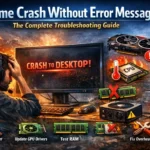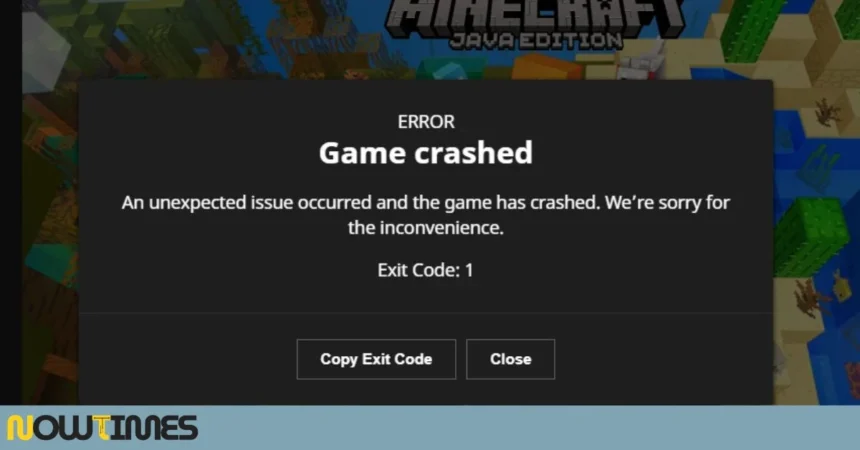



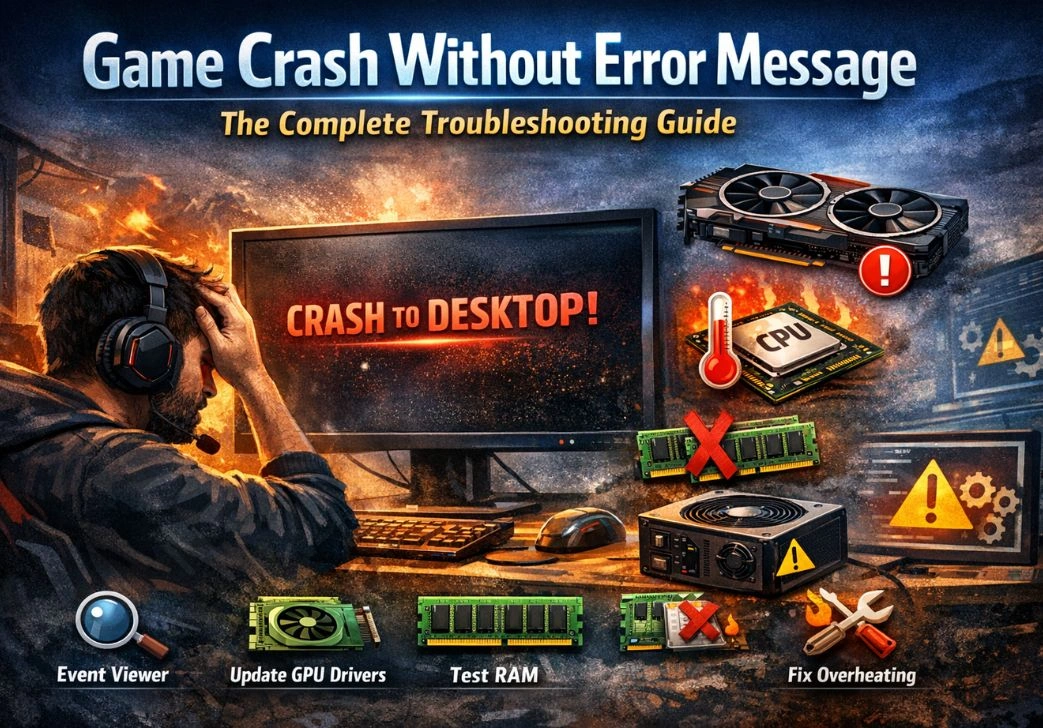

Few things are as frustrating as a game that suddenly closes to the desktop — no warning, no error message, nothing. You were mid-match, deep into a boss fight, or hours into a session, and then everything just stopped. The screen goes black for a split second, and you are staring at your desktop again like nothing happened.
The worst part? Without an error message, you have no idea where to even start. Windows gives you nothing. The game launcher stays silent. You search online but get results that are all over the place.
This guide covers every realistic cause of this problem and walks you through the game crash without error message fix in a clear, logical order — from the quick wins to the deeper hardware and software issues that most guides skip entirely.
Why Games Crash Without Showing an Error Message
When most software crashes, it triggers an exception handler that catches the error and displays a message. But games are different. They push hardware to its limits, communicate directly with GPU drivers, manage their own memory pools, and run in fullscreen modes that bypass normal Windows error dialogs.
When something goes wrong at the driver or hardware level, the process terminates so abruptly that no error dialog has time to appear. This is actually a useful clue. A silent crash almost always points to one of these root causes:
- GPU driver crash or timeout (TDR — Timeout Detection and Recovery)
- Overheating CPU or GPU triggering a thermal shutdown
- Faulty or unstable RAM (bad sticks or wrong XMP/EXPO profile)
- Insufficient or unstable power delivery from the PSU
- Background software conflicts — antivirus, overlays, recording tools
- Corrupted game files or misconfigured in-game graphics settings
The key is working through these systematically rather than randomly trying fixes and hoping something sticks.
Step 1 — Check Event Viewer for Hidden Clues
Even when a game crashes silently, Windows often records something in the background. Event Viewer is the first place you should look before you touch anything else.
How to check Event Viewer:

1. Press Win + R, type eventvwr.msc, press Enter.
2. Go to Windows Logs > Application.
3. Look for Error entries around the time of the crash.
4. Also check Windows Logs > System for driver-level errors.
Look for any mentions of nvlddmkm (NVIDIA driver), atikmpag (AMD driver), or ntoskrnl. These entries confirm a GPU driver crash. If you see Kernel-Power Event ID 41, that is a sudden power loss to the system — often pointing to the PSU or an extreme thermal event.
Step 2 — Update or Roll Back Your GPU Drivers
GPU driver issues cause the majority of silent game crashes. A new driver update can introduce instability with certain games, and a very old driver may not support newer rendering features properly. Both directions can cause crashes.
The right approach here is to do a clean reinstall, not just an update on top of an existing install. Use DDU (Display Driver Uninstaller) in Safe Mode to fully remove the current driver, then install a fresh copy from the official NVIDIA or AMD website.
Clean driver reinstall process:
5. Download DDU from guru3d.com and save it to your desktop.
6. Boot into Safe Mode (Settings > Recovery > Advanced Startup).
7. Run DDU and select “Clean and Restart” for your GPU brand.
8. Once Windows restarts normally, install the latest driver from NVIDIA or AMD.
9. If crashes continue with the latest driver, try rolling back one version.
This single step resolves the problem for a large number of people. It is worth the time even if you recently updated drivers, because not all driver versions are equally stable for all games.
Step 3 — Monitor and Address Overheating
Thermal throttling and overheating are among the most common causes of silent game crashes, especially during graphically intensive scenes. When a GPU hits its thermal limit, it either throttles aggressively or shuts down entirely — with no warning to the user.
Install MSI Afterburner or HWiNFO64 and run it in the background while gaming. Pay close attention to GPU temperature — anything consistently above 90°C is a problem. For CPUs, sustained temperatures above 95°C are concerning. Many modern CPUs and GPUs will crash or shut down before they reach unsafe limits, but the threshold differs by component.
If your temperatures are high, the fix is usually one or a combination of the following: cleaning dust from heatsinks and fans, replacing old dried thermal paste on the CPU, improving case airflow by reorganizing cables or adding intake fans, and checking that all GPU fans are actually spinning under load.
Laptops are especially prone to this. Laptops accumulate dust in their thin vents quickly and have very little thermal headroom. If gaming crashes started appearing recently on a laptop that is more than a year or two old, heat is almost certainly the culprit.
Step 4 — Test Your RAM for Errors
Faulty RAM can cause all kinds of strange behavior — crashes, freezes, blue screens, or silent game exits. The problem is that RAM errors do not always show up as consistent symptoms. A game might crash once every few hours or only when loading a specific level.
There are two things to try here. First, if you are running an XMP or EXPO memory profile in your BIOS, try disabling it and running RAM at the default rated speed. Overclocked memory profiles, even officially rated ones, are not guaranteed to be stable with every CPU and motherboard combination. Second, run MemTest86 to check for actual hardware errors in your RAM sticks.
How to run MemTest86:
10. Download MemTest86 from memtest86.com and create a bootable USB drive.
11. Boot from the USB and let it run at least one full pass (ideally two or more).
12. Any errors found indicate faulty RAM that needs to be replaced or reseated.
If you have two RAM sticks, try testing them one at a time. A single faulty stick can destabilize your entire system while the other stick is perfectly healthy.
Step 5 — Rule Out Power Supply Problems
A power supply that cannot deliver stable power under load is a surprisingly common cause of silent game crashes. When you launch a game, your GPU power draw spikes significantly. If the PSU cannot keep up, the GPU receives an unstable or insufficient power supply and crashes — often silently.
This is especially relevant if your crashes happen exactly when a scene gets graphically demanding, or if you recently upgraded your GPU without upgrading the PSU. Modern high-end GPUs can pull 300W or more at peak, and a cheap 500W PSU may not hold stable voltages under that kind of load.
To test this, you can try an underclock or power limit on your GPU via MSI Afterburner. Set the power limit slider to around 80% and the core clock to -100 MHz. If your crashes stop, the PSU is a strong suspect. A full PSU replacement with a properly rated unit is the only real fix here.
Step 6 — Disable Conflicting Background Applications
Background apps that hook into game processes are a frequent cause of silent crashes. Game overlays, third-party antivirus scanners, screen recorders, and RGB lighting software all inject code or read game memory. When they conflict with anti-cheat systems or specific game versions, they can cause the process to terminate without warning.
The best way to test this is to do a clean boot. Press Win + R and type msconfig, then under the Services tab, check “Hide all Microsoft services” and click “Disable all.” Also go to Task Manager > Startup and disable everything there. Restart and launch the game. If it stops crashing, you have a software conflict — re-enable programs one by one until the crash returns.
Common offenders include Discord overlay, GeForce Experience in-game overlay, MSI Afterburner if you also have RivaTuner running, Bitdefender or similar antivirus tools that actively scan game files, and third-party RGB software like iCUE or Armory Crate.
Step 7 — Verify Game Files and Adjust Graphics Settings
Corrupted game files can cause crashes at specific points — a loading screen, a cutscene, or a particular map. Steam, Epic Games, and most other launchers have a built-in file verification tool. On Steam, right-click the game, go to Properties > Local Files > Verify Integrity of Game Files. This checks every file against the official manifest and replaces anything corrupted.
Beyond file integrity, in-game graphics settings are worth reviewing. Settings like ray tracing, async compute, and very high VRAM-intensive options can push your GPU beyond what it comfortably handles. Try lowering the resolution, turning off ray tracing, and reducing shadow and texture quality. This can work as both a diagnostic step and a temporary fix while you address the underlying issue.
Step 8 — Check Windows Updates and System File Integrity
Windows system file corruption can cause games to crash silently, especially after a failed update or incomplete installation. Windows includes built-in tools to check and repair these files.
Run these commands in an elevated Command Prompt:
13. sfc /scannow — scans and repairs Windows system files.
14. DISM /Online /Cleanup-Image /RestoreHealth — repairs the Windows image used by SFC.
Also make sure Windows is up to date. Some game crashes are tied to specific Windows builds and fixed in updates. Go to Settings > Windows Update and install any pending updates, including optional ones.
Step 9 — Address GPU Overclocking and VRAM Issues
If your GPU has any kind of overclock applied — either from factory (as in factory-overclocked cards) or done manually — try resetting it to default speeds. Even factory overclocks can become unstable as the card ages, especially when temperatures are involved.
Another consideration is VRAM usage. When a game exceeds available VRAM, it spills into system RAM, which is significantly slower. On cards with 4–6 GB of VRAM, running modern games at high texture settings can push VRAM usage over the limit, leading to crashes. Reducing texture quality is the straightforward fix for this specific scenario.
Step 10 — Reinstall Visual C++ Redistributables and DirectX
Games depend on runtime libraries — particularly Microsoft Visual C++ Redistributables and DirectX — and damaged or missing versions of these can cause silent crashes. Reinstalling them takes only a few minutes and can fix problems that have nothing to do with the game itself.
Download the latest Visual C++ Redistributable packages (both x64 and x86) from Microsoft’s official website. For DirectX, running the DirectX End-User Runtime Web Installer from Microsoft will update and repair any missing components. These are free and safe downloads from official Microsoft sources.
When to Suspect Hardware Failure
If you have worked through all of the steps above and the crashes continue, you may be dealing with a hardware failure rather than a software or configuration problem. The most common hardware suspects at this stage are a failing GPU, degraded RAM, or a PSU that can no longer hold stable voltages.
A GPU that is starting to fail may only show problems under sustained load. Running a benchmark tool like FurMark for 10–15 minutes can reveal instability. If you get visual artifacts, screen tearing, or the system crashes during the benchmark, the GPU itself is the likely culprit.
Borrowing a known-good PSU or GPU from a friend to swap and test is the most reliable diagnostic approach for hardware failures, since software tools can only tell you so much about physical hardware degradation.
Summary: The Right Order to Troubleshoot
When applying the game crash without error message fix, working in order matters. Start with the free and reversible steps before spending time on deep diagnostics or hardware replacement. Here is the recommended sequence:
15. Check Event Viewer for any logged errors.
16. Clean reinstall GPU drivers using DDU.
17. Monitor temperatures with HWiNFO64 or MSI Afterburner.
18. Test RAM with MemTest86 and try disabling XMP/EXPO.
19. Test for PSU issues using GPU underclocking.
20. Perform a clean boot to find software conflicts.
21. Verify game files and reduce graphics settings.
22. Run SFC and DISM system file repair tools.
23. Reset any GPU overclocks.
24. Reinstall Visual C++ Redistributables and DirectX.
Frequently Asked Questions
Q1: Why does my game crash to desktop with no error message?
This usually happens because the crash occurs at the driver or hardware level, before Windows gets a chance to generate an error dialog. The most common reasons are GPU driver timeouts, RAM instability, overheating, power delivery problems, or software conflicts with overlays and anti-cheat systems.
Q2: How do I find out why my game crashed if there is no error message?
Open Windows Event Viewer (eventvwr.msc) and check the Application and System logs for error entries around the time of your crash. Look for GPU driver entries, Kernel-Power errors, or application faults. These will point you toward the likely cause.
Q3: Can bad RAM cause silent game crashes?
Yes. Faulty or unstable RAM is a well-known cause of silent game crashes. Even an XMP or EXPO profile that is slightly too aggressive for your specific hardware combination can cause instability. Run MemTest86 to check for physical errors and try disabling XMP to see if the crashes stop.
Q4: Does reinstalling the game fix a crash without an error message?
Sometimes, but it depends on the cause. If corrupted game files are responsible, reinstalling will help. But if the issue is hardware-related — overheating, bad RAM, or a failing GPU — reinstalling the game will have no effect. Use the file verification tool in your game launcher first, since it does the same thing without a full reinstall.
Q5: Could my antivirus be causing game crashes?
Yes, particularly real-time scanning features that monitor game files actively. Antivirus software that scans active game directories or injects monitoring code can conflict with anti-cheat systems and cause silent crashes. Try adding the game folder as an exception in your antivirus settings and see if that resolves it.
Q6: How do I know if my PSU is causing game crashes?
Clues include crashes that happen specifically when graphically demanding scenes load, Event Viewer showing Kernel-Power Event ID 41, or system-wide shutdowns rather than just game crashes. Test by reducing GPU power limit to 80% in MSI Afterburner. If crashes stop, the PSU may not be delivering enough stable power under peak load.
Q7: My game only crashes after 20–30 minutes. What does that suggest?
Crashes that appear only after extended play sessions strongly suggest a thermal issue. It takes time for components to heat up to critical temperatures. Monitor GPU and CPU temperatures using HWiNFO64 during a session and watch for gradual increases. If temperatures are climbing into dangerous ranges right before crashes occur, heat management is your fix.
Q8: Will a fresh Windows install fix silent game crashes?
It can, but it is an extreme step that should come after exhausting software-level options like clean driver installs, system file repair (SFC/DISM), and clean boot testing. A fresh Windows install is helpful when deep system file corruption or driver conflicts are the cause. It will not help with hardware problems.