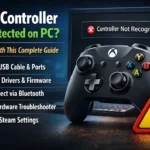



You sit down, load up your favorite game, and grab your Xbox controller — only to find Windows acting like it doesn’t exist. No input, no rumble, nothing. It’s frustrating, especially when everything worked fine the last time you played.
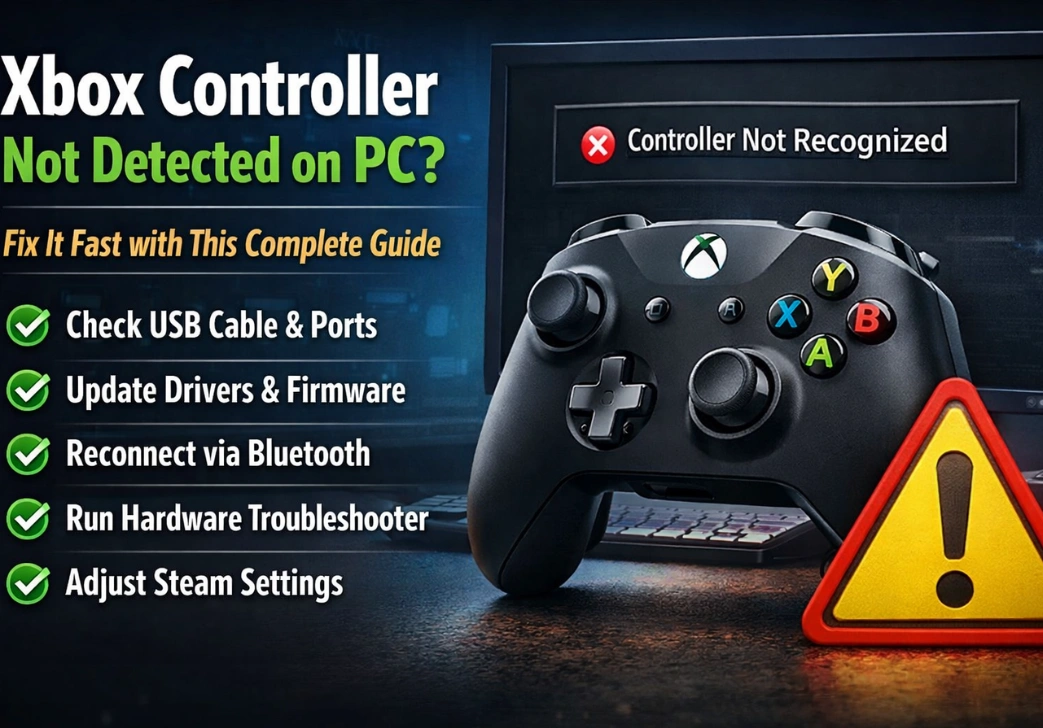
Here’s the thing: an xbox controller not detected on PC fix almost always exists, and most of the time it takes less than ten minutes. This guide covers every real solution, ordered from the simplest to the most advanced. Work through them one at a time and you’ll almost certainly be gaming again before you finish reading.
Why Windows Doesn’t Detect Your Xbox Controller
Windows talks to your controller through a chain — drivers, USB or Bluetooth protocols, and software layers all need to cooperate. When one link in that chain breaks, Windows acts like the controller was never plugged in.
The most common culprits are outdated or corrupt drivers, where Windows installs the wrong version or a good one gets overwritten after an update. Bluetooth pairing issues are another frequent problem, especially on Windows 11, where the Bluetooth stack can behave strangely after major OS updates. On the hardware side, a charge-only USB cable is probably the single most overlooked cause — these cables power the controller but carry zero data.
Other things that trip people up include an outdated Xbox Accessories app that conflicts with controller recognition, a Windows update that quietly swaps a working driver for a buggy one, and outdated controller firmware that causes detection failures no driver fix will touch.
Knowing which category your problem falls into saves a lot of time. Just bought the controller and it’s never worked? Probably the cable or a missing driver. Stopped working after a Windows update? Check your drivers first.
Start With the Simple Stuff
Plenty of people jump straight to Device Manager and spend an hour reinstalling drivers when the actual problem was a charge-only cable. Before going anywhere technical, run through these quick checks first.
Swap the USB Cable
This is the fix that catches people off guard most often. The cable bundled with many Xbox controllers, and most phone charger cables, carries power only — no data. Windows can’t detect a controller through a charge-only cable even if the controller lights up.
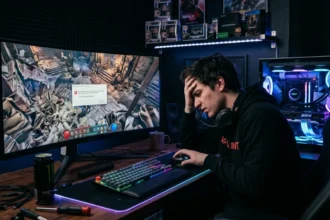
Grab any cable you’ve actually used to transfer files from a phone and try that instead. Plug directly into a USB port on the PC itself, not a hub. If Windows makes the connection chime and the controller’s center ring holds steady, the old cable was the entire problem.
Try a Different USB Port
Front-panel USB ports on desktop cases are sometimes wired poorly or simply worn out. Move the cable to a port on the back of the PC. On laptops, try a different port on the other side. It’s a 10-second test that occasionally saves an hour of troubleshooting.
Power Cycle the Controller
Hold the Xbox button for about six seconds until the controller shuts off, then press it again to restart. This clears the controller’s internal connection state and takes zero effort.
Check the Battery
A controller running on its last bit of battery will sometimes connect and immediately drop, or not connect at all. Fresh batteries or a fully charged battery pack should rule this out before you move on.
Fix the Driver Through Device Manager
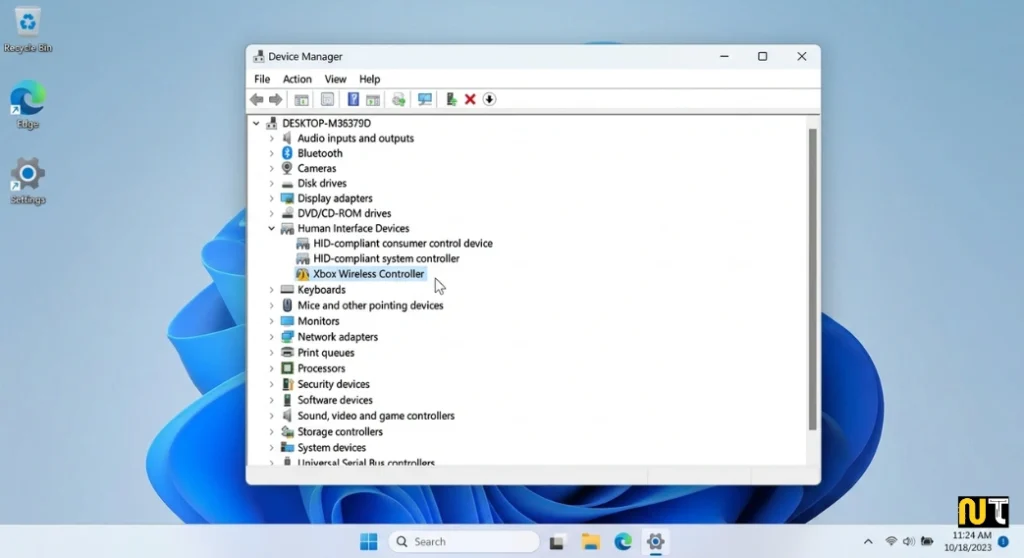
Device Manager is where Windows tracks all connected hardware. If your controller isn’t working in games, it might still show up here — often with a yellow warning icon pointing to a driver problem.
To open Device Manager, press Windows + X and click it from the menu. Look under Human Interface Devices or Xbox Peripherals for your controller. A yellow triangle means Windows recognized something was connected but couldn’t load the right driver.
Update the Driver
Right-click the device and choose Update Driver, then select Search automatically for drivers. Windows will check online for a better match. If it finds and installs one, restart your PC, plug the controller back in, and test it.
Do a Clean Driver Reinstall
If updating didn’t help, a clean reinstall often does. Right-click the device and choose Uninstall device. If you see an option to delete the driver software, check that box. Unplug the controller, wait 30 seconds, and plug it back in. Windows will try to install a fresh driver on its own. If nothing happens, open Device Manager, click Action in the menu bar, and choose Scan for hardware changes.
Run Windows Update and Update the Xbox Accessories App
Microsoft often bundles controller driver fixes into Windows Update rather than releasing them as standalone patches. If you’ve been skipping updates, you may have also skipped the one that would’ve fixed this.
Go to Settings > Windows Update and hit Check for updates. Install everything, including optional updates — those sometimes carry hardware-specific fixes that the main update skips.
Update the Xbox Accessories App
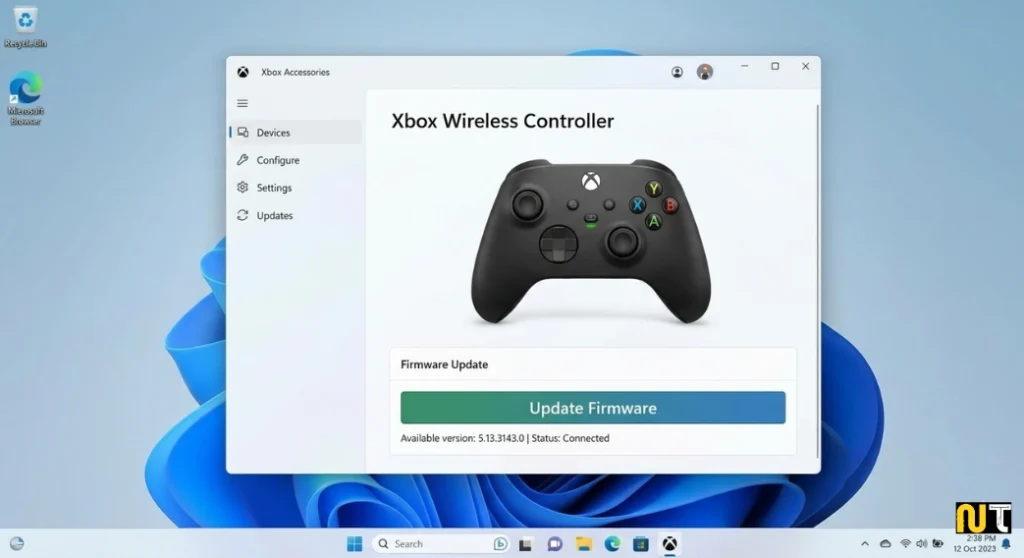
Open the Microsoft Store, click Library at the bottom left, and tap Get updates. Once the Xbox Accessories app is current, open it with your controller connected. If the controller firmware is outdated, the app will tell you and walk you through the update. Don’t unplug the controller during the firmware update — let it finish completely.
Fix a Wireless Xbox Controller That Won’t Connect
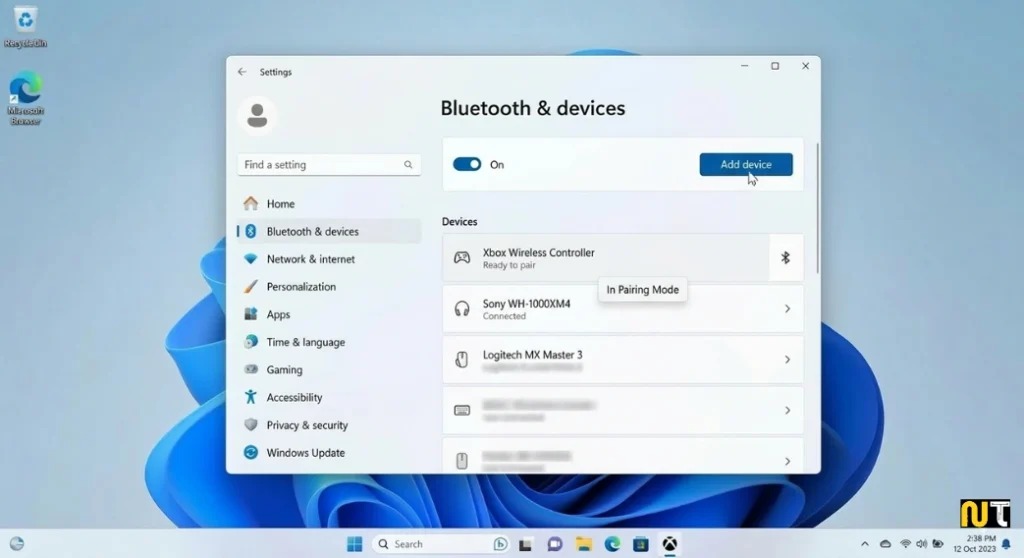
Wireless controllers bring their own set of issues. Bluetooth on Windows can be inconsistent, and newer Xbox controllers use a proprietary Xbox Wireless protocol on top of standard Bluetooth, which adds another layer to manage.
Remove the Pairing and Start Fresh
Go to Settings > Bluetooth & devices, find your Xbox controller in the list, click the three-dot menu next to it, and choose Remove device. Once it’s gone, put the controller into pairing mode by holding the small pairing button on the top edge until the Xbox button blinks rapidly. On your PC, click Add device, choose Bluetooth, and select the controller when it shows up.
Fresh pairings fix a surprising number of wireless issues that look like driver problems.
Switch to the Xbox Wireless Adapter
If you have an Xbox Wireless Adapter, use it instead of Bluetooth. It uses Microsoft’s own wireless protocol, which is noticeably more stable than standard Bluetooth and has lower latency. Plug the adapter into a USB port, hold the pairing button on the controller, then press the small button on the adapter. They’ll pair within seconds.
Reinstall the Bluetooth Driver
A corrupted Bluetooth driver can cause wireless detection failures that look like controller problems. In Device Manager, expand Bluetooth, right-click your Bluetooth adapter, and choose Update driver. If that doesn’t fix it, uninstall the driver entirely, restart the PC, and let Windows reinstall it fresh on boot.
Run the Windows Hardware Troubleshooter
Windows has a built-in hardware troubleshooter that handles a lot of common detection problems automatically. It won’t catch everything, but it’s worth a quick run.
Go to Settings > System > Troubleshoot > Other troubleshooters and look for Hardware and Devices. Click Run and follow the prompts.
If you’re on Windows 11 and can’t find it in settings, press Windows + R, type msdt.exe -id DeviceDiagnostic, and press Enter. That opens it directly.
Turn Off Fast Startup
Windows Fast Startup speeds up boot time by saving a partial system state instead of doing a full shutdown. The problem is that USB devices sometimes don’t initialize correctly when the PC resumes from this saved state — they get skipped during what looks like a normal startup.
Go to Control Panel > Hardware and Sound > Power Options > Choose what the power buttons do. Click Change settings that are currently unavailable, uncheck Turn on fast startup, and save. Then do a proper Shutdown from the Start menu (not sleep or restart) and boot the PC back up fresh.
Plug the controller in after Windows fully loads and test it.
Check Your Steam Controller Settings
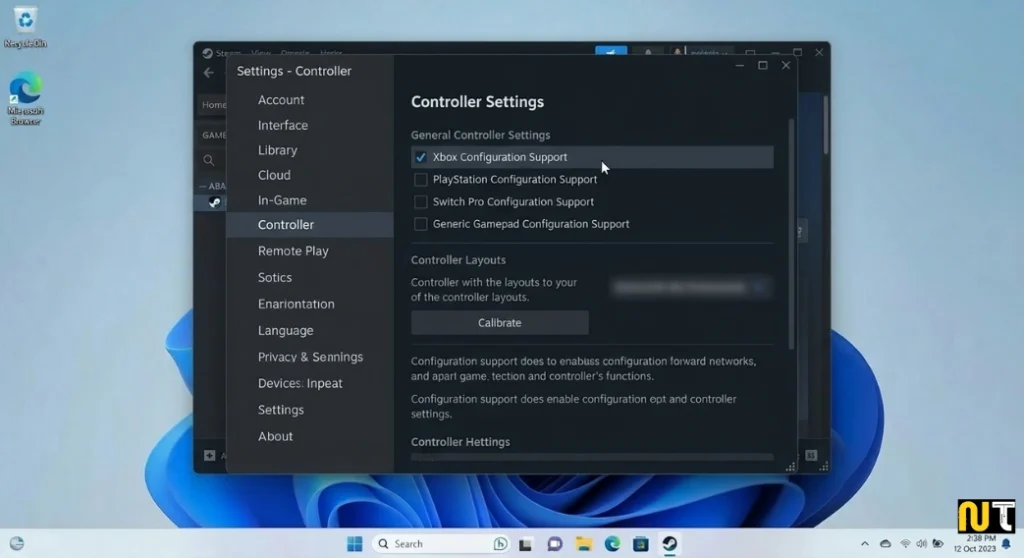
If you’re launching games through Steam, this step matters even when Windows is detecting the controller perfectly fine. Steam has its own controller layer called Steam Input, and if it’s misconfigured, it can block the game from receiving controller input entirely.
Open Steam, go to Steam > Settings > Controller, and click General controller settings. Make sure Xbox Configuration Support is checked. If it was already on, try toggling it off and back on.
Also check for per-game overrides: right-click the game in your library, go to Properties > Controller, and set it to Use default settings or Enable Steam Input. A per-game setting that’s been left on the wrong option will override everything else.
Manually Install Microsoft’s Official Xbox Driver Package
Sometimes Windows puts a generic HID driver in place of the proper Xbox controller driver. The fix is to pull the correct driver package directly from Microsoft’s website.
Search for Xbox controller driver for Windows on Microsoft’s official support page. Download the version that matches your Windows edition and your controller model — Xbox One controllers and Xbox Series X/S controllers use different packages. Run the installer, follow the steps, and restart. After rebooting, open Device Manager and confirm the controller shows up under Xbox Peripherals, not under Human Interface Devices.
Check the Controller for Physical Damage
If every software fix has failed, take the controller out of the equation and test it somewhere else — another PC, a console, or a phone with a USB OTG adapter. If it’s not detected anywhere, the hardware is the problem, not Windows.
While you’re at it, look at the USB port on the controller itself. A bent pin or debris in the port can prevent a good connection even with a working cable. A short blast of compressed air clears out most debris without any risk. If the port feels loose or damaged, Microsoft’s out-of-warranty repair service is worth looking into.
Run a System File Check
Corrupted Windows system files can cause all kinds of weird hardware behavior, including devices that refuse to be detected. The System File Checker tool scans for these and replaces anything it finds.
Press Windows + S, type cmd, right-click Command Prompt, and choose Run as administrator. Run this command:
sfc /scannow
- Give it a few minutes to finish. If it repairs anything, restart and test the controller again.
- For deeper issues, follow it up with DISM:
- DISM /Online /Cleanup-Image /RestoreHealth
This repairs the Windows component store itself — something SFC can’t always reach on its own.
Last Resort: Reset Windows Update Components
In rare situations, the Windows Update service gets into a broken state and won’t install driver updates correctly no matter what you do. Resetting the update components clears the stuck data and gives it a clean slate.
The process involves stopping Windows services, renaming two system folders, and restarting those services. Microsoft publishes a step-by-step guide for this on their support website — search for Reset Windows Update components to find it. It’s a bit involved, but it’s safe if you follow each step in order.
Quick Reference Summary
If you want to scan through everything fast, here’s the full list in order:
- Swap the USB cable for a data-capable one
- Try a different USB port — preferably one on the back of the PC
- Restart the controller and check the battery
- Update or reinstall the driver through Device Manager
- Run Windows Update, including optional updates
- Update the Xbox Accessories app and install any firmware updates
- Remove the Bluetooth pairing and re-pair from scratch
- Run the Windows Hardware Troubleshooter
- Disable Fast Startup and do a full shutdown-restart
- Check Steam Input settings if you’re using Steam
- Manually install the official Xbox driver from Microsoft’s site
- Run SFC and DISM to repair corrupted system files
Frequently Asked Questions
Q1: Why is my Xbox controller connected but not working on PC?
Windows may detect the controller but load the wrong driver. Open Device Manager and check for a yellow warning icon next to the controller. Update the driver if needed. If there’s no warning icon, the issue may come from Steam Input settings instead.
Q2: Why does my Xbox controller keep disconnecting from the PC?
This usually happens because of a charge-only USB cable, weak Bluetooth signal, or low battery. Try a different cable, move closer to the PC if using Bluetooth, or replace the batteries.
Q3: Does an Xbox controller need a special driver on Windows 10 or 11?
No. Windows 10 and Windows 11 automatically install Xbox controller drivers. However, if something breaks after a Windows update, you may need to reinstall the correct driver manually.
Q4: Can a bad USB cable stop Windows from detecting an Xbox controller?
Yes. Many USB cables are charge-only and do not transfer data. The controller may power on but Windows cannot detect it. Always use a data-capable USB cable.
Q5: How do I update my Xbox controller firmware on PC?
Open the Xbox Accessories app from the Microsoft Store while the controller is connected via USB. If a firmware update is available, the app will prompt you to install it.
Q6: Is USB or Bluetooth better for an Xbox controller on PC?
USB is generally more stable and reliable. Bluetooth works well but can sometimes cause connection drops or latency depending on signal strength and interference..
Final Thoughts
Most xbox controllers not detected on PC problems trace back to one of three things: a bad cable, an outdated driver, or a Bluetooth pairing gone wrong. None of those are hard to fix once you know what to look for.
If your controller stopped working after a recent Windows update, go straight to Device Manager and the Xbox Accessories app — that’s almost always where the problem lives. If it’s never worked on this particular PC, start with the cable and work forward from there.
Your controller is probably fine. The problem is almost always on the software or connection side, and everything in this guide is reversible and safe to try.
Read More: Controller Not Working in PC Games Fix