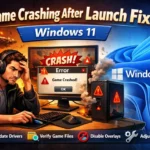


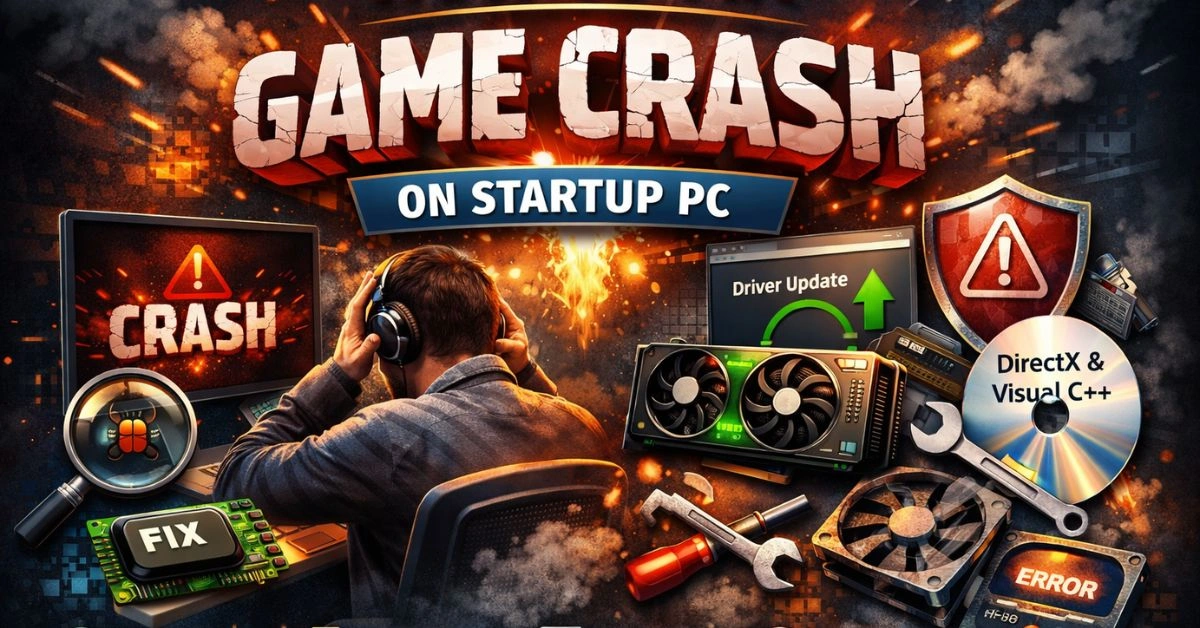

You sit down, fire up your game, and instead of loading — nothing. A crash. Maybe a black screen, maybe an error message, maybe just the game disappearing without a trace. Whatever form it takes, a game crashing on startup is one of the most maddening things you can deal with as a PC gamer.
The good news? It is almost always fixable. And you do not need to be a tech wizard to get it sorted. This guide walks you through every practical fix, from the simplest two-second checks to the deeper digs, so you can figure out what is going wrong and get back into the game as quickly as possible.
Whether you are using Steam, Epic Games, GOG, or launching a game directly — these fixes apply across the board.
Why Do Games Crash on Startups?
Before you start troubleshooting, it helps to know what you are actually dealing with. Games crash on startup for a lot of different reasons, and they are rarely random. Usually, something specific is triggering it.
The most common causes are outdated or broken graphics drivers, corrupted installation files, background software interfering with the launch, missing system files like DirectX or Visual C++ packages, and sometimes an antivirus program that has flagged the game’s executable as suspicious. Other times, it comes down to a settings file from a previous session that has gone bad, or a Windows component that is out of date.
Knowing this matters because it tells you the problem is not with you and it is not permanent. It is a conflict of some kind, and conflicts have solutions.
Start with the Simple Stuff First
A lot of people skip straight to the complicated fixes and miss the obvious ones. Before anything else, run through these quick checks — they only take a few minutes and they fix the problem more often than you would think.
Give Your PC a Proper Restart
Not Sleep. Not Hibernate. A full restart. This clears out temporary memory, flushes background processes, and often resolves crashes that seemed mysterious. If you have had your machine running for days without a reboot, do that first and then try launching the game again.
Double-Check the System Requirements
It is worth a two-minute check. Pull up the game’s store page and compare its minimum requirements against your PC specs. If your GPU, RAM, or CPU falls short, the game may start loading and crash immediately because it cannot allocate what it needs. You can check your system specs by going to Settings > System > About in Windows.
Run the Game as Administrator
Some games need admin-level access to reach certain system resources or write to protected directories. Right-click the game’s shortcut or its .exe file and choose Run as administrator. If that gets it working, make the change permanent through the game’s Properties > Compatibility tab so you do not have to do it manually every time.
| Quick tip: If the game only crashes the first time you launch it after a Windows update, running as administrator is usually the first thing to try. |
Update Your Graphics Drivers
Outdated GPU drivers are behind a huge proportion of game startup crashes, and this is the first real fix worth trying. Game developers test their releases against current driver versions, so running drivers that are months old can mean you are hitting bugs that were already fixed in a later release.
For NVIDIA users, open GeForce Experience or go straight to NVIDIA’s website to download the latest driver for your card. AMD users can find updated drivers through AMD Radeon Software or the AMD support site. If you are running Intel integrated graphics, use the Intel Driver and Support Assistant.
After installing the update, restart your PC before testing the game again — a restart is necessary for driver changes to fully take effect.
One thing worth knowing: sometimes a brand-new driver can introduce new problems rather than fix them. If the crashes started right after you updated your drivers, try rolling back to the version before it. You can do this through Device Manager by right-clicking your GPU, selecting Properties, going to the Driver tab, and clicking Roll Back Driver.
Verify Your Game Files for Corruption
If the game’s installation files were corrupted at any point — whether that happened during the original download, a patchy update, or a sudden power cut mid-install — the game will crash on startup because it is trying to load files that are broken or missing.
Every major PC gaming platform has a built-in tool to check for this and fix it automatically.
On Steam
Right-click the game in your Steam library and select Properties. Under the Local Files tab, click Verify integrity of game files. Steam will scan everything and redownload any files that do not match what they should be. This takes a few minutes but often resolves crashes completely.
On Epic Games, EA App, and GOG Galaxy
The process is essentially the same across all platforms. Right-click or find the options menu for the game in your library and look for a Verify or Repair option. The launcher does the rest. If it finds corrupted files it will replace them, and you can try launching the game again once it finishes.
| This fix works more often than people expect. If you have never done it before, it should be one of the first three things you try. |
Update Windows, DirectX, and Visual C++
Modern games do not run in isolation. They depend on Windows system components to function, and if those components are out of date or missing, the game will fail to start.
Keep Windows Updated
Go to Settings > Windows Update and install any updates that are waiting. This keeps your DirectX version current and ensures the underlying system libraries that games rely on are in good shape.
Check Your DirectX Version
Press Windows + R, type dxdiag, and press Enter. The DirectX Diagnostic Tool will show you which version you are running. If you are on an older version and a game requires a newer one, a Windows Update should sort it.
Reinstall Visual C++ Redistributables
Visual C++ Redistributables are packages that many games need in order to run. They are supposed to install automatically when you install a game, but this process can sometimes fail without showing any error. Head to Microsoft’s official website and download the latest Visual C++ Redistributable packages. Install both the x64 and x86 versions, restart your PC, and then test the game.
Turn Off Overlays and Unnecessary Background Apps
Software that runs alongside your games — overlays especially — can clash with the game’s own systems or with anti-cheat software, and that conflict can cause a crash before the game even finishes loading.
Common offenders include the Discord overlay, NVIDIA’s in-game overlay, the Steam overlay, Xbox Game Bar, and performance monitors like MSI Afterburner. Try disabling them one at a time to figure out which one, if any, is the problem.
To disable the Steam overlay, right-click the game in your library, go to Properties, and uncheck Enable the Steam Overlay while in-game. For Discord, go into Settings > Game Overlay and toggle it off.
Do a Clean Boot to Isolate the Problem
If you want to test whether a background application is behind the crash, a clean boot strips Windows down to only what it needs to run. Press Windows + R, type msconfig, and press Enter. Under the Services tab, check Hide all Microsoft services, then click Disable all. Switch to the Startup tab and open Task Manager to disable startup programs from there as well. Restart your PC and try launching the game.
If the game works now, one of those disabled programs was causing the conflict. You can re-enable them one at a time — restarting and testing the game each time — until you find the culprit.
Check Your Antivirus and Firewall
Antivirus programs can and do block games from launching. This is especially common with games that ship with anti-cheat software, since anti-cheat tools perform low-level operations that can look suspicious to security software.
Temporarily disable your antivirus and try launching the game. If that fixes it, do not just leave your protection off permanently. Instead, add the game’s installation folder as an exclusion in your antivirus settings so it gets left alone while still protecting the rest of your system.
You should also check Windows Defender separately. Go to Windows Security > Virus and Threat Protection > Manage Settings, then scroll down to Exclusions and add the game’s folder there.
Reset Game Settings and Try Launch Parameters
Sometimes a bad settings file from a previous session is the entire problem. If you set the resolution to something your monitor does not support, or push the graphics beyond what your GPU can handle, the game might crash before you even get a chance to change anything.
Delete the Game’s Config File
Most games keep their config files in your Documents folder or in AppData. Press Windows + R, type %appdata%, and press Enter to open AppData. Find the folder for your game, delete it or rename it, and relaunch. The game will generate fresh default settings and the crash caused by a broken config will be gone. Your graphics and audio preferences will be reset, but that’s a small trade-off.
Use Game Launch Parameters
On Steam, right-click the game, go to Properties, and in the General tab you will find a Launch Options box. Some useful parameters worth trying:
- -windowed — launches the game in windowed mode, bypassing resolution issues
- -dx11 or -dx12 — forces a specific DirectX version
- -safe — starts the game with all graphics settings at minimum
Check the game’s official support page or its Steam community discussions for parameters specific to that title.
When All Else Fails: Do a Clean Reinstall
If none of the fixes above have worked, a clean reinstall is the logical next step. The key word here is clean — a standard uninstall often leaves behind residual files and folders that carry the corruption with them into the new install.
Uninstall the game through your gaming platform. Then, before reinstalling, manually check the game’s folder in Program Files and your AppData directory and delete anything that is still there from the old installation. Once the slate is clear, reinstall fresh.
Before you do any of this, make sure your saves are backed up. Most platforms like Steam and GOG sync saves to the cloud automatically, but check first so you are not losing hours of progress.
Rule Out Hardware Problems
If every software fix has been exhausted and the game still crashes on startup, it is time to look at the hardware. Overheating, bad RAM, and aging storage drives are all capable of causing consistent crashes that look like software problems.
Check for Overheating
Download HWMonitor or use MSI Afterburner to watch your CPU and GPU temperatures in real time. Healthy GPU temperatures during gaming generally fall between 60°C and 85°C. If your GPU is hitting 90°C or above, it may be throttling or shutting the game down before it can even finish loading. Cleaning dust out of your PC’s intake and exhaust vents can make a significant difference here.
Test Your RAM
Faulty RAM is a surprisingly common cause of unpredictable crashes. Run the Windows Memory Diagnostic tool by pressing Windows + R and typing mdsched.exe. It will scan your RAM on the next restart and flag any issues it finds.
Check Your Storage Drive Health
If your hard drive or SSD is failing, the game may be reading corrupted data off the disk as it tries to load. CrystalDiskInfo is a free tool that reads the health status your drive reports through its built-in monitoring data. If it shows a Caution or Bad status, the drive may need replacing.
Read the Crash Logs and Check Community Forums
If you are stuck and nothing is working, crash logs and community knowledge are your best remaining tools.
Windows keeps detailed logs of every application crash. Open Event Viewer (search for it in the Start menu), go to Windows Logs > Application, and look for error entries that timestamp to when your game crashed. These entries often name the exact file or module that caused the failure, which gives you something specific to search for.
The game’s Steam community discussions, dedicated subreddit, or its official support forums are also invaluable. Startup crash problems with specific games are usually reported by multiple people, and someone in the community has often already found the fix — sometimes weeks before the developer issues a patch. PC Gaming Wiki is another excellent resource that documents known bugs and workarounds for hundreds of games.
How to Prevent Game Crashes in the Future
Once you have sorted the current crash, a few ongoing habits will go a long way toward keeping things stable:
- Keep your GPU drivers reasonably up to date, but give new driver releases a day or two before installing — let the community spot any major issues first.
- Add your games folder to your antivirus exclusions list to prevent future false positives.
- Clean out dust from your PC every few months, especially around the GPU cooler and case fans. Thermal throttling from overheating is a common background cause of crashes.
- Trim your startup programs so fewer things are running in the background when you launch a game.
- Keep Windows updated so your DirectX, .NET, and other runtime libraries stay current.
Frequently Asked Questions
These are the questions people ask most often about game crashes on PC startup.
Q1. Why does my game crash immediately when I try to open it?
The most common reasons are outdated graphics drivers, corrupted game installation files, a background program conflicting with the game, or a missing system dependency like a Visual C++ package or DirectX component. Starting with a driver update and a game file verification covers the majority of cases.
Q2. How do I fix a game that crashes on startup without any error message?
A crash with no error message is usually caused by a corrupted file, a conflicting overlay, or an antivirus quietly blocking the launch. Try verifying your game files through your launcher, disabling overlays (Discord, Steam, NVIDIA), and temporarily turning off your antivirus to see if any of those fix it.
Q3. Does reinstalling a game fix crashes on startup issues?
It can, but only if the problem is corrupted or missing installation files. A standard uninstall and reinstall often carries old corrupted files over. For a reinstall to actually help, you need to manually delete leftover game folders from Program Files and AppData before reinstalling from scratch.
Q4. Can antivirus software really cause games to crash on startup?
Yes, and it happens more often than most people realize. Anti-cheat software built into many games performs low-level system operations that antivirus programs can misidentify as threats, causing them to block or quarantine game files silently. Adding your game’s installation folder as an exclusion in your antivirus settings is the proper fix.
Q5. How do I know if my GPU drivers are causing the game to crash?
If a game that previously worked started crashing after a Windows or driver update, drivers are likely involved. Check when the crash started against when your last driver update happened. You can roll back your GPU driver through Device Manager if a new update introduces the issue.
Q6. What is the fastest way to fix a game crash on startup on Steam?
Right-click the game in your Steam library, go to Properties > Local Files, and click Verify integrity of game files. This is the quickest meaningful fix to try after a restart, and it solves the problem more often than you would expect.
Q7. Can overheating cause a game to crash on startup before it even loads?
It is less common than a mid-session crash, but yes — if your GPU or CPU is already running at high temperatures before the game even fully loads, the system may cut the process short to protect itself. Check your temperatures with a tool like HWMonitor and clean out any dust buildup from your coolers if temperatures look high.
Q8. Is it safe to add a game folder as an antivirus exclusion?
Generally yes, especially for games from established platforms and developers. You are telling your antivirus to trust that specific folder rather than turning off all protection. Just make sure you are only adding the game’s actual installation directory and not a broader system folder.
Q9. How do I check if bad RAM is causing my game to crash?
Press Windows + R, type mdsched.exe, and follow the prompts. Windows Memory Diagnostic will test your RAM on the next restart and report any faults. This is a built-in Windows tool and requires no additional software.
Q10. What should I do if nothing works and the game still crashes on startup?
If you have exhausted all the standard fixes, check Event Viewer for detailed crash logs (Windows Logs > Application), search the game’s Steam community discussions or its official subreddit for others with the same issue, and reach out to the developer’s support team directly with details of your system specs and the error. Known bugs are patched in updates, and the developer’s support team can often point you toward a specific workaround.
Conclusion
A game crashing on startup is frustrating, but it is almost never the end of the road. In the majority of cases, the fix comes down to something manageable — a driver update, a corrupted file, a background app getting in the way, or a settings file that needs resetting.
Work through the steps in this guide from the top. Start with the quick checks, then move into drivers and file integrity, then background software, then hardware — and by the time you reach the end, the problem is almost certain to have been resolved somewhere along the way.
And when you do fix it, drop a note in the game’s community forum. Someone else will be searching for the exact same answer tomorrow.